


Page 37 - CC2017_DW_Look_Inside
P. 37
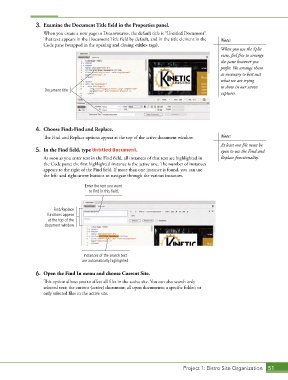
3.  Examine the Document Title field in the Properties panel.
                   When you create a new page in Dreamweaver, the default title is “Untitled Document”.
                   That text appears in the Document Title field by default, and in the title element in the   Note:
                   Code pane (wrapped in the opening and closing <title> tags).
                                                                                            When you use the Split
                                                                                            view, feel free to arrange
                                                                                            the pane however you
                                                                                            prefer. We arrange them
                                                                                            as necessary to best suit
                                                                                            what we are trying
                                                                                            to show in our screen
                   Document title
                                                                                            captures.


                4.  Choose Find>Find and Replace.

                   The Find and Replace options appear at the top of the active document window.  Note:
                                                                                            At least one file must be
                5.  In the Find field, type Untitled Document.                              open to use the Find and
                   As soon as you enter text in the Find field, all instances of that text are highlighted in   Replace functionality.
                   the Code pane; the first highlighted instance is the active one. The number of instances
                   appears to the right of the Find field. If more than one instance is found, you can use
                   the left- and right-arrow buttons to navigate through the various instances.

                                    Enter the text you want
                                      to find in this field.


                       Find/Replace
                     functions appear
                     at the top of the
                   document window.


                                    Instances of the search text
                                   are automatically highlighted.


                6.  Open the Find In menu and choose Current Site.
                   This option allows you to affect all files in the active site. You can also search only
                   selected text; the current (active) document; all open documents; a specific folder; or
                   only selected files in the active site.


                                                                             Project 1: Bistro Site Organization  51

