


Page 28 - CC2017_DW_Look_Inside
P. 28
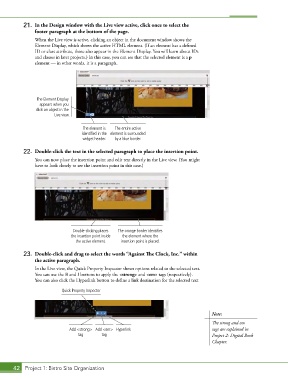
21.  In the Design window with the Live view active, click once to select the
               footer paragraph at the bottom of the page.

               When the Live view is active, clicking an object in the document window shows the
               Element Display, which shows the active HTML element. (If an element has a defined
               ID or class attribute, those also appear in the Element Display. You will learn about IDs
               and classes in later projects.) In this case, you can see that the selected element is a p
               element — in other words, it is a paragraph.


                The Element Display
                 appears when you
                click an object in the
                       Live view.

                                   The element is   The entire active
                                   identified in the   element is surrounded
                                   widget header.  by a blue border.

           22.  Double-click the text in the selected paragraph to place the insertion point.
               You can now place the insertion point and edit text directly in the Live view. (You might
               have to look closely to see the insertion point in this case.)


                               Double-clicking places   The orange border identifies
                              the insertion point inside   the element where the
                                the active element.  insertion point is placed.

           23.  Double-click and drag to select the words “Against The Clock, Inc.” within
               the active paragraph.
               In the Live view, the Quick Property Inspector shows options related to the selected text.
               You can use the B and I buttons to apply the <strong> and <em> tags (respectively).
               You can also click the Hyperlink button to define a link destination for the selected text.

                           Quick Property Inspector


                                                                                        Note:
                                                                                        The strong and em
                              Add <strong>  Add <em>  Hyperlink                         tags are explained in
                                 tag       tag                                          Project 2: Digital Book
                                                                                        Chapter.


       42 Project 1: Bistro Site Organization

