


Page 30 - CC2017_DW_Look_Inside
P. 30
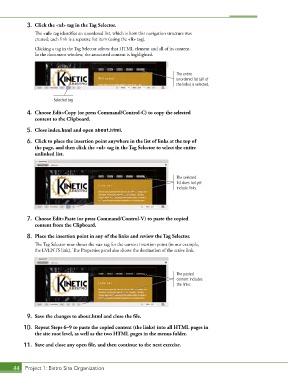
3.  Click the <ul> tag in the Tag Selector.
               The <ul> tag identifies an unordered list, which is how this navigation structure was
               created; each link is a separate list item (using the <li> tag).

               Clicking a tag in the Tag Selector selects that HTML element and all of its content.
               In the document window, the associated content is highlighted.


                                                                          The entire
                                                                          unordered list (all of
                                                                          the links) is selected.


                       Selected tag

            4.  Choose Edit>Copy (or press Command/Control-C) to copy the selected
               content to the Clipboard.

            5.  Close index.html and open about.html.

            6.  Click to place the insertion point anywhere in the list of links at the top of
               the page, and then click the <ul> tag in the Tag Selector to select the entire
               unlinked list.


                                                                          The selected
                                                                          list does not yet
                                                                          include links.


            7.  Choose Edit>Paste (or press Command/Control-V) to paste the copied
               content from the Clipboard.

            8.  Place the insertion point in any of the links and review the Tag Selector.
               The Tag Selector now shows the <a> tag for the current insertion point (in our example,
               the EVENTS link). The Properties panel also shows the destination of the active link.


                                                                          The pasted
                                                                          content includes
                                                                          the links.


            9.  Save the changes to about.html and close the file.

           10.  Repeat Steps 6–9 to paste the copied content (the links) into all HTML pages in
               the site root level, as well as the two HTML pages in the menus folder.

           11.  Save and close any open file, and then continue to the next exercise.


       44 Project 1: Bistro Site Organization

