


Page 32 - CC2017_DW_Look_Inside
P. 32
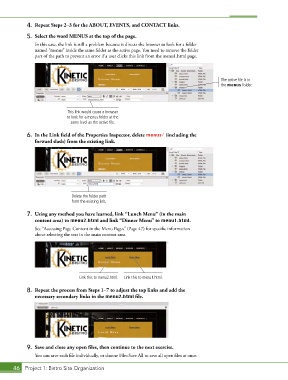
4.  Repeat Steps 2–3 for the ABOUT, EVENTS, and CONTACT links.
            5.  Select the word MENUS at the top of the page.

               In this case, the link is still a problem because it directs the browser to look for a folder
               named “menus” inside the same folder as the active page. You need to remove the folder
               part of the path to prevent an error if a user clicks this link from the menu1.html page.


                                                                                            The active file is in
                                                                                            the menus folder.


                             This link would cause a browser
                             to look for a menus folder at the
                              same level as the active file.

            6.  In the Link field of the Properties Inspector, delete menus/ (including the
               forward slash) from the existing link.


                               Delete the folder path
                               from the existing link.

            7.  Using any method you have learned, link “Lunch Menu” (in the main
               content area) to menu2.html and link “Dinner Menu” to menu1.html.
               See “Accessing Page Content in the Menu Pages” (Page 47) for specific information
               about selecting the text in the main content area.


                                  Link this to menu2.html.  Link this to menu1.html.

            8.  Repeat the process from Steps 1–7 to adjust the top links and add the
               necessary secondary links in the menu2.html file.


            9.  Save and close any open files, then continue to the next exercise.
               You can save each file individually, or choose File>Save All to save all open files at once.

       46 Project 1: Bistro Site Organization

