


Page 72 - CC2018_WD_Look_Inside
P. 72
ArrAnge lAyer position And stACking order
          The ad is almost final, but a few pieces are still not quite in position. You already know
          you can use the Move tool to move the contents of a layer around on the canvas. You
          can move a layer to any position in the stacking order (the top-to-bottom position of
          a layer) by simply dragging it to a new position in the Layers panel.
            1.  With aftermath.psd open, make all layers visible.

            2.  Click the Bricks layer in the Layers panel and drag up. When a heavy bar
               appears below the Title layer, release the mouse button.
                                                                                        Note:

                          The heavy line indicates                                      Press Command/
                          where the layer will be                                       Control-[ (left bracket) to
                           positioned when you                                          move a layer down in the
                        release the mouse button.                                       stacking order.

               Be careful when dragging layers near a layer group: If the border appears around a layer   Press Command/
               group, releasing the mouse button would place the dragged layer inside of the group.   Control-] (right bracket)
                                                                                        to move a layer up in the
            3.  Repeat the process to move the Lightning layer below the Skyline layer.  stacking order.

            4.  Choose the Move tool, and check the Auto-Select option in the Options bar.
               Open the attached menu (to the right of the Auto-Select check box) and
               choose Layer.
               When Layer is selected in the Auto-Select menu, only the relevant layer will move even
               if it is part of a layer group. If you want all layers in a group containing the selected layer
               to move, you can choose Group in the menu.

            5.  In the document window, click any pixel in the movie title and drag down
               until the title appears in the bottom half of the canvas.
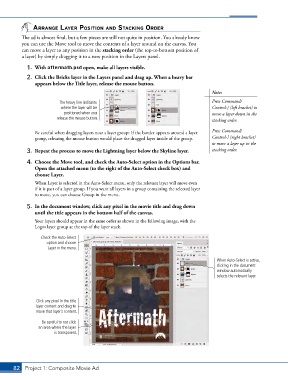
               Your layers should appear in the same order as shown in the following image, with the
               Logos layer group at the top of the layer stack.
                  Check the Auto-Select
                    option and choose
                     Layer in the menu.

                                                                                          When Auto-Select is active,
                                                                                          clicking in the document
                                                                                          window automatically
                                                                                          selects the relevant layer.


                Click any pixel in the title
                layer content and drag to
                move that layer’s content.
                  Be careful to not click
                 an area where the layer
                       is transparent.


       82 Project 1: Composite Movie Ad

