


Page 71 - CC2018_WD_Look_Inside
P. 71
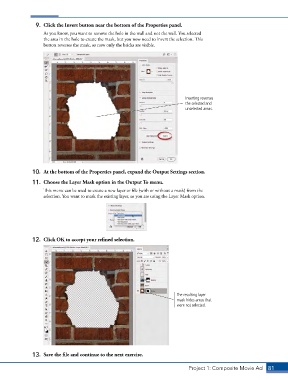
9.  Click the Invert button near the bottom of the Properties panel.
                   As you know, you want to remove the hole in the wall and not the wall. You selected
                   the area in the hole to create the mask, but you now need to invert the selection. This
                   button reverses the mask, so now only the bricks are visible.


                                                                              Inverting reverses
                                                                              the selected and
                                                                              unselected areas.


               10.  At the bottom of the Properties panel, expand the Output Settings section.

               11.  Choose the Layer Mask option in the Output To menu.
                   This menu can be used to create a new layer or file (with or without a mask) from the
                   selection. You want to mask the existing layer, so you are using the Layer Mask option.


               12.  Click OK to accept your refined selection.


                                                                          The resulting layer
                                                                          mask hides areas that
                                                                          were not selected.


               13.  Save the file and continue to the next exercise.


                                                                               Project 1: Composite Movie Ad    81

