


Page 18 - CC2017_WD_Look_Inside
P. 18
11.  If you don’t see rulers on the top and left edges of the document window,
               choose View>Rulers to toggle rulers on.

               As we explained in the Interface chapter, the panels you see depend on what was done
               the last time you (or someone else) used the Photoshop application. Because workspace
               arrangement is such a personal preference, we tell you what panels you need to use but
               we don’t tell you where to put them.


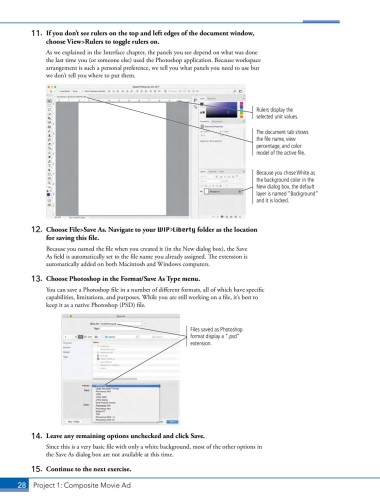
                                                                                 Rulers display the
                                                                                 selected unit values.

                                                                                 The document tab shows
                                                                                 the file name, view
                                                                                 percentage, and color
                                                                                 model of the active file.


                                                                                 Because you chose White as
                                                                                 the background color in the
                                                                                 New dialog box, the default
                                                                                 layer is named “Background”
                                                                                 and it is locked.


           12.  Choose File>Save As. Navigate to your WIP>Liberty folder as the location
               for saving this file.
               Because you named the file when you created it (in the New dialog box), the Save
               As field is automatically set to the file name you already assigned. The extension is
               automatically added on both Macintosh and Windows computers.

           13.  Choose Photoshop in the Format/Save As Type menu.
               You can save a Photoshop file in a number of different formats, all of which have specific
               capabilities, limitations, and purposes. While you are still working on a file, it’s best to
               keep it as a native Photoshop (PSD) file.


                                                             Files saved as Photoshop
                                                             format display a “.psd”
                                                             extension.


           14.  Leave any remaining options unchecked and click Save.
               Since this is a very basic file with only a white background, most of the other options in
               the Save As dialog box are not available at this time.

           15.  Continue to the next exercise.

       28 Project 1: Composite Movie Ad

