


Page 44 - Adobe Photoshop and Dreamviewer 2021
P. 44
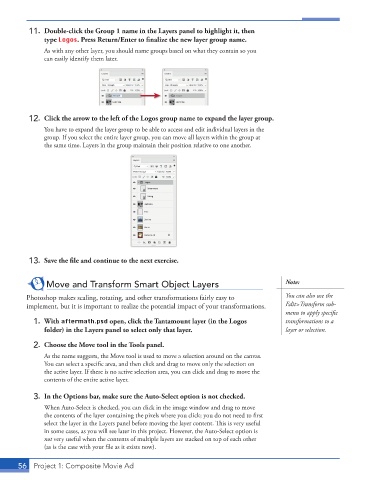
11.  Double-click the Group 1 name in the Layers panel to highlight it, then
              type Logos. Press Return/Enter to fi nalize the new layer group name.
               As with any other layer, you should name groups based on what they contain so you
               can easily identify them later.


          12.  Click the arrow to the left of the Logos group name to expand the layer group.
               You have to expand the layer group to be able to access and edit individual layers in the
               group. If you select the entire layer group, you can move all layers within the group at
               the same time. Layers in the group maintain their position relative to one another.


          13.  Save the fi le and continue to the next exercise.


               Move and Transform Smart Object Layers                                   Note:

         Photoshop makes scaling, rotating, and other transformations fairly easy to    You can also use the
         implement, but it is important to realize the potential impact of your transformations.   Edit>Transform sub-

                                                                                        menu to apply specific
          1. With aftermath.psd open, click the Tantamount layer (in the Logos          transformations to a
               folder) in the Layers panel to select only that layer.                   layer or selection.

          2.  Choose the Move tool in the Tools panel.
               As the name suggests, the Move tool is used to move a selection around on the canvas.

               You can select a specific area, and then click and drag to move only the selection on
               the active layer. If there is no active selection area, you can click and drag to move the
               contents of the entire active layer.

          3.  In the Options bar, make sure the Auto-Select option is not checked.
               When Auto-Select is checked, you can click in the image window and drag to move

               the contents of the layer containing the pixels where you click; you do not need to first

               select the layer in the Layers panel before moving the layer content. This is very useful
               in some cases, as you will see later in this project. However, the Auto-Select option is
               not very useful when the contents of multiple layers are stacked on top of each other
               (as is the case with your file as it exists now).


       56  Project 1: Composite Movie Ad

