


Page 46 - CS6_GD_Look_Inside.pdf
P. 46
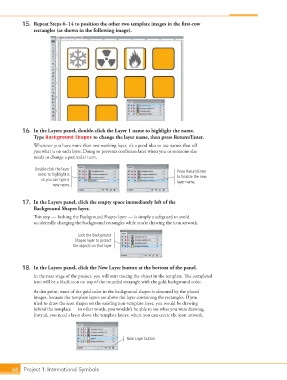
15.  Repeat Steps 6–14 to position the other two template images in the first-row
                    rectangles (as shown in the following image).


                16.  In the Layers panel, double-click the Layer 1 name to highlight the name.
                    Type Background Shapes to change the layer name, then press Return/Enter.
                    Whenever you have more than one working layer, it’s a good idea to use names that tell
                    you what is on each layer. Doing so prevents confusion later when you or someone else
                    needs to change a particular item.

                     Double-click the layer                                    Press Return/Enter
                      name to highlight it,                                    to finalize the new
                       so you can type a                                       layer name.
                            new name.


                17.  In the Layers panel, click the empty space immediately left of the
                    Background Shapes layer.
                    This step — locking the Background Shapes layer — is simply a safeguard to avoid
                    accidentally changing the background rectangles while you’re drawing the icon artwork.

                                      Lock the Background
                                     Shapes layer to protect
                                    the objects on that layer.


                18.  In the Layers panel, click the New Layer button at the bottom of the panel.
                    In the next stage of the project, you will start tracing the object in the template. The completed
                    icon will be a black icon on top of the rounded rectangle with the gold background color.
                    At this point, most of the gold color in the background shapes is obscured by the placed
                    images, because the template layers are above the layer containing the rectangles. If you
                    tried to draw the icon shapes on the existing non-template layer, you would be drawing
                    behind the template — in other words, you wouldn’t be able to see what you were drawing.
                    Instead, you need a layer above the template layers, where you can create the icon artwork.


                                                          New Layer button


           66 Project 1: International Symbols

