


Page 41 - CS6_GD_Look_Inside.pdf
P. 41
iMPort teMPlate iMages
                  Many Illustrator projects require you to start with something that has already been
                  captured — a sketch, photograph, or low-resolution image (which is the case in this
                  project). Illustrator makes it easy to place existing digital files to use as templates for
                  your new artwork. You will use this feature in this exercise.

                    1.  With icons.ai open, choose File>Place. Navigate to your WIP>Symbols
                        folder and click cold.tif to select that file.

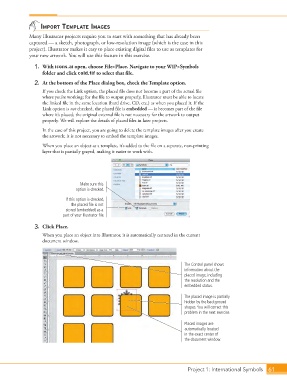
                    2.  At the bottom of the Place dialog box, check the Template option.
                        If you check the Link option, the placed file does not become a part of the actual file
                        where you’re working; for the file to output properly, Illustrator must be able to locate
                        the linked file in the same location (hard drive, CD, etc.) as when you placed it. If the
                        Link option is not checked, the placed file is embedded — it becomes part of the file
                        where it’s placed; the original external file is not necessary for the artwork to output
                        properly. We will explore the details of placed files in later projects.

                        In the case of this project, you are going to delete the template images after you create
                        the artwork; it is not necessary to embed the template images.

                        When you place an object as a template, it’s added to the file on a separate, non-printing
                        layer that is partially grayed, making it easier to work with.


                                       Make sure this
                                     option is checked.

                                 If this option is checked,
                                    the placed file is not
                                 stored (embedded) as a
                                part of your Illustrator file.
                    3.  Click Place.

                        When you place an object into Illustrator, it is automatically centered in the current
                        document window.


                                                                                  The Control panel shows
                                                                                  information about the
                                                                                  placed image, including
                                                                                  the resolution and the
                                                                                  embedded status.
                                                                                  The placed image is partially
                                                                                  hidden by the background
                                                                                  shapes. You will correct this
                                                                                  problem in the next exercise.

                                                                                  Placed images are
                                                                                  automatically located
                                                                                  in the exact center of
                                                                                  the document window.


                                                                                   Project 1: International Symbols  61

