


Page 44 - CS6_GD_Look_Inside.pdf
P. 44
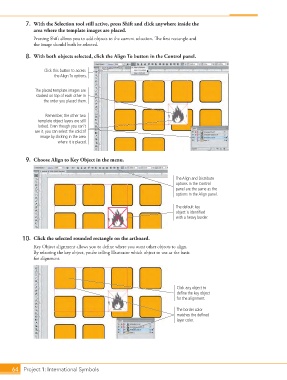
7.  With the Selection tool still active, press Shift and click anywhere inside the
                    area where the template images are placed.
                    Pressing Shift allows you to add objects to the current selection. The first rectangle and
                    the image should both be selected.

                 8.  With both objects selected, click the Align To button in the Control panel.


                         Click this button to access
                             the Align To options.


                     The placed template images are
                     stacked on top of each other in
                        the order you placed them.


                         Remember, the other two
                      template object layers are still
                      locked. Even though you can’t
                     see it, you can select the cold.tif
                       image by clicking in the area
                              where it is placed.


                 9.  Choose Align to Key Object in the menu.


                                                                              The Align and Distribute
                                                                              options in the Control
                                                                              panel are the same as the
                                                                              options in the Align panel.


                                                                              The default key
                                                                              object is identified
                                                                              with a heavy border.


                10.  Click the selected rounded rectangle on the artboard.
                    Key Object alignment allows you to define where you want other objects to align.
                    By selecting the key object, you’re telling Illustrator which object to use as the basis
                    for alignment.


                                                                               Click any object to
                                                                               define the key object
                                                                               for the alignment.

                                                                               The border color
                                                                               matches the defined
                                                                               layer color.


           64 Project 1: International Symbols

