


Page 40 - CC2019_PS_Look_Inside
P. 40
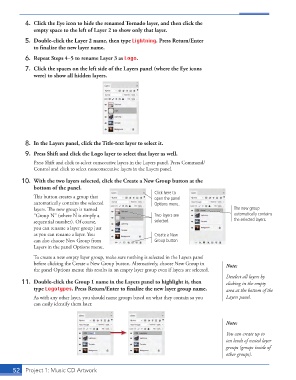
4.  Click the Eye icon to hide the renamed Tornado layer, and then click the
                   empty space to the left of Layer 2 to show only that layer.
               5.  Double-click the Layer 2 name, then type Lightning. Press Return/Enter
                   to fi nalize the new layer name.
               6.  Repeat Steps 4–5 to rename Layer 3 as Logo.

               7.  Click the spaces on the left side of the Layers panel (where the Eye icons
                   were) to show all hidden layers.


               8.  In the Layers panel, click the Title-text layer to select it.
               9.  Press Shift and click the Logo layer to select that layer as well.
                     Press Shift and click to select consecutive layers in the Layers panel. Press Command/
                   Control and click to select nonconsecutive layers in the Layers panel.

               10.  With the two layers selected, click the  Create a New Group button at the
                   bottom of the panel.
                                                                  Click here to
                   Th  is button creates a group that             open the panel
                   automatically contains the selected            Options menu.
                   layers. Th  e new group is named                                             The new group
                   “Group N” (where N is simply a                 Two layers are                automatically contains
                   sequential number). Of course,                 selected.                     the selected layers.
                   you can rename a  layer group just
                   as you can rename a layer. You                 Create a New
                   can also choose  New Group from                Group button
                   Layers in the panel Options menu.
                   To create a new empty layer group, make sure nothing is selected in the Layers panel
                   before clicking the Create a New Group button. Alternatively, choose New Group in   Note:
                   the panel Options menu; this results in an empty layer group even if layers are selected.
                                                                                               Deselect all layers by
               11.  Double-click the Group 1 name in the Layers panel to highlight it, then   clicking in the empty
                   type Logotypes. Press Return/Enter to fi nalize the new  layer group name.   area at the bottom of the

                   As with any other layer, you should name groups based on what they contain so you   Layers panel.
                   can easily identify them later.


                                                                                             Note:
                                                                                             You can create up to
                                                                                             ten levels of  nested layer
                                                                                             groups (groups inside of
                                                                                             other groups).


           52     Project 1: Music CD Artwork

