


Page 39 - CC2019_PS_Look_Inside
P. 39
STAGE 2 / Managing Layers


                 Photoshop includes a number of options for managing layers: naming layers for easier recognition,
                 creating layer groups so multiple layers can be manipulated at once, moving layers around on the
                 canvas, transforming layers both destructively and nondestructively, controlling individual layer
                 visibility, and arranging the top-to-bottom stacking order of layers to determine exactly what is
                 visible. You will use all of these options in this stage of the project.


                       Name Layers and Layer Groups

                 It’s always a good idea to name your layers because it makes managing the file much
                 easier — especially when you work with files that include dozens of layers. Even with
                 only four unnamed layers in this file (counting the Background layer), it would be
                 tedious to have to toggle each layer on to find the one you want.

                   1.  With cd-artwork.psd open, review the Layers panel.

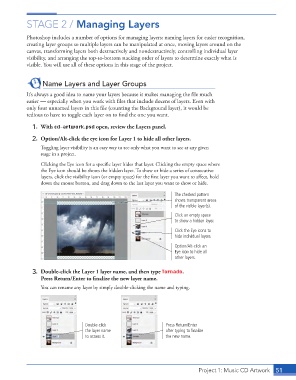
                   2.  Option/Alt-click the eye icon for Layer 1 to hide all other layers.
                      Toggling layer visibility is an easy way to see only what you want to see at any given
                      stage in a project.

                      Clicking the Eye icon for a specific layer hides that layer. Clicking the empty space where
                      the Eye icon should be shows the hidden layer. To show or hide a series of consecutive
                      layers, click the visibility icon (or empty space) for the first layer you want to affect, hold
                      down the mouse button, and drag down to the last layer you want to show or hide.

                                                                         The checked pattern
                                                                         shows transparent areas
                                                                         of the visible layer(s).
                                                                         Click an empty space
                                                                         to show a hidden layer.

                                                                         Click the Eye icons to
                                                                         hide individual layers.
                                                                         Option/Alt-click an
                                                                         Eye icon to hide all
                                                                         other layers.

                   3.  Double-click the Layer 1 layer name, and then type Tornado.
                      Press Return/Enter to finalize the new layer name.
                      You can rename any layer by simply double-clicking the name and typing.


                                       Double-click                   Press Return/Enter
                                       the layer name                 after typing to finalize
                                       to access it.                  the new name.


                                                                                  Project 1: Music CD Artwork   51

