


Page 44 - CC2019_PS_Look_Inside
P. 44
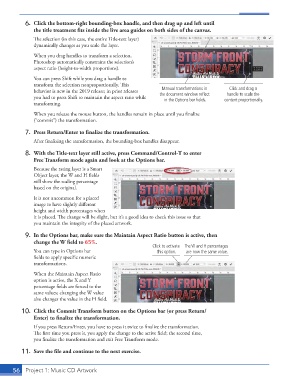
6.  Click the bottom-right bounding-box handle, and then drag up and left until
                   the title treatment fi ts inside the live area guides on both sides of the canvas.
                   Th  e selection (in this case, the entire Title-text layer)
                   dynamically changes as you scale the layer.

                   When you drag handles to transform a selection,
                   Photoshop automatically constrains the selection’s
                   aspect ratio (height-to-width proportions).
                   You can press Shift while you drag a handle to
                   transform the selection nonproportionally. Th  is
                                                                                              Click and drag a
                                                                    Manual transformations in
                   behavior is new in the 2019 release; in prior releases   the document window reflect   handle to scale the
                   you had to press Shift to maintain the aspect ratio while   in the Options bar fields.  content proportionally.
                   transforming.
                   When you release the mouse button, the handles remain in place until you fi nalize
                   (“commit”) the transformation.

               7.  Press Return/Enter to fi nalize the transformation.
                   After fi nalizing the transformation, the bounding-box handles disappear.

               8.  With the Title-text layer still active, press Command/Control-T to enter
                   Free Transform mode again and look at the  Options bar.
                   Because the rating layer is a  Smart
                   Object layer, the W and H fi elds
                   still show the scaling percentage
                   based on the original.

                   It is not uncommon for a placed
                   image to have slightly diff erent
                   height and width percentages when
                   it is placed. Th  e change will be slight, but it’s a good idea to check this issue so that
                   you maintain the integrity of the placed artwork.

               9.  In the Options bar, make sure the Maintain Aspect Ratio button is active, then
                   change the W fi eld to 65%.
                                                                 Click to activate  The W and H percentages
                     You can type in Options bar                  this option.  are now the same value.
                   fi elds to apply specifi c numeric
                   transformations.
                   When the  Maintain  Aspect Ratio
                   option is active, the X and Y
                   percentage fi elds are forced to the
                   same values; changing the W value
                   also changes the value in the H fi eld.

               10.  Click the  Commit Transform button on the  Options bar (or press Return/
                   Enter) to fi nalize the transformation.

                   If you press Return/Enter, you have to press it twice to fi nalize the transformation.
                   Th  e fi rst time you press it, you apply the change to the active fi eld; the second time,
                   you fi nalize the transformation and exit Free Transform mode.
               11.  Save the fi le and continue to the next exercise.


           56     Project 1: Music CD Artwork

