


Page 58 - CC2018_PS_Look_Inside
P. 58
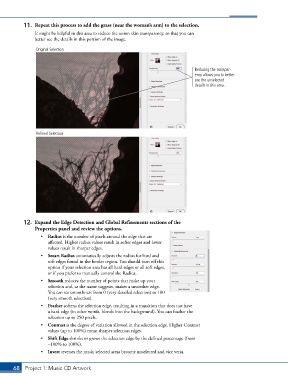
11.  Repeat this process to add the grass (near the woman’s arm) to the selection.
               It might be helpful in this area to reduce the onion skin transparency, so that you can
               better see the details in this portion of the image.

                Original Selection


                                                                                 Reducing the transpar-
                                                                                 ency allows you to better
                                                                                 see the unselected
                                                                                 details in this area.


                Refined Selection


           12.  Expand the Edge Detection and Global Refinements sections of the
               Properties panel and review the options.
                  •  Radius is the number of pixels around the edge that are
                     affected. Higher radius values result in softer edges and lower
                     values result in sharper edges.
                  •  Smart Radius automatically adjusts the radius for hard and
                     soft edges found in the border region. You should turn off this
                     option if your selection area has all hard edges or all soft edges,
                     or if you prefer to manually control the Radius.
                  •  Smooth reduces the number of points that make up your
                     selection and, as the name suggests, makes a smoother edge.
                     You can set smoothness from 0 (very detailed selection) to 100
                     (very smooth selection).
                  •  Feather softens the selection edge, resulting in a transition that does not have
                     a hard edge (in other words, blends into the background). You can feather the
                     selection up to 250 pixels.
                  •  Contrast is the degree of variation allowed in the selection edge. Higher Contrast
                     values (up to 100%) mean sharper selection edges.
                  •  Shift Edge shrinks or grows the selection edge by the defined percentage (from
                     –100% to 100%).
                  •  Invert reverses the mask; selected areas become unselected and vice versa.


       68 Project 1: Music CD Artwork

