


Page 51 - CC2018_PS_Look_Inside
P. 51
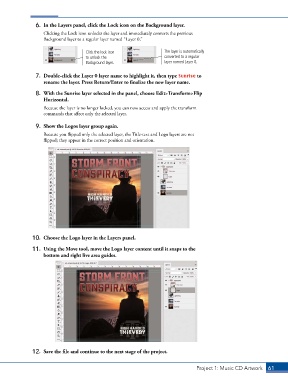
6.  In the Layers panel, click the Lock icon on the Background layer.
                   Clicking the Lock icon unlocks the layer and immediately converts the previous
                   Background layer to a regular layer named “Layer 0.”


                                    Click the lock icon              The layer is automatically
                                    to unlock the                    converted to a regular
                                    Background layer.                layer named Layer 0.


                7.  Double-click the Layer 0 layer name to highlight it, then type Sunrise to
                   rename the layer. Press Return/Enter to finalize the new layer name.

                8.  With the Sunrise layer selected in the panel, choose Edit>Transform>Flip
                   Horizontal.
                   Because the layer is no longer locked, you can now access and apply the transform
                   commands that affect only the selected layer.


                9.  Show the Logos layer group again.
                   Because you flipped only the selected layer, the Title-text and Logo layers are not
                   flipped; they appear in the correct position and orientation.


               10.  Choose the Logo layer in the Layers panel.

               11.  Using the Move tool, move the Logo layer content until it snaps to the
                   bottom and right live area guides.


               12.  Save the file and continue to the next stage of the project.


                                                                                  Project 1: Music CD Artwork   61

