


Page 48 - CC2018_PS_Look_Inside
P. 48
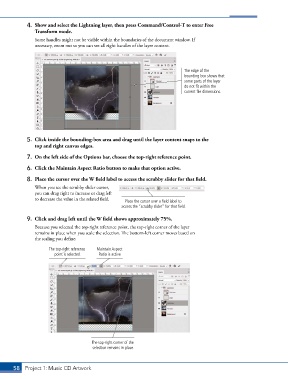
4.  Show and select the Lightning layer, then press Command/Control-T to enter Free
               Transform mode.

               Some handles might not be visible within the boundaries of the document window. If
               necessary, zoom out so you can see all eight handles of the layer content.


                                                                             The edge of the
                                                                             bounding box shows that
                                                                             some parts of the layer
                                                                             do not fit within the
                                                                             current file dimensions.


            5.  Click inside the bounding-box area and drag until the layer content snaps to the
               top and right canvas edges.

            7.  On the left side of the Options bar, choose the top-right reference point.
            6.  Click the Maintain Aspect Ratio button to make that option active.

            8.  Place the cursor over the W field label to access the scrubby slider for that field.

               When you see the scrubby slider cursor,
               you can drag right to increase or drag left
               to decrease the value in the related field.  Place the cursor over a field label to
                                                   access the “scrubby slider” for that field.


            9.  Click and drag left until the W field shows approximately 75%.
               Because you selected the top-right reference point, the top-right corner of the layer
               remains in place when you scale the selection. The bottom-left corner moves based on
               the scaling you define.

                     The top-right reference   Maintain Aspect
                       point is selected.  Ratio is active.


                                       The top-right corner of the
                                       selection remains in place.


       58 Project 1: Music CD Artwork

