


Page 49 - CC2018_PS_Look_Inside
P. 49
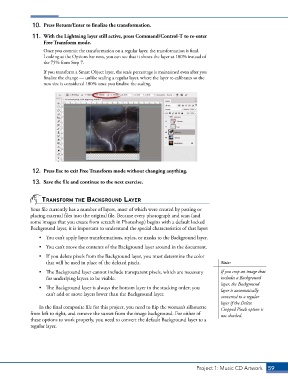
10.  Press Return/Enter to finalize the transformation.
               11.  With the Lightning layer still active, press Command/Control-T to re-enter
                   Free Transform mode.
                   Once you commit the transformation on a regular layer, the transformation is final.
                   Looking at the Options bar now, you can see that it shows the layer at 100% instead of
                   the 75% from Step 7.

                   If you transform a Smart Object layer, the scale percentage is maintained even after you
                   finalize the change — unlike scaling a regular layer, where the layer re-calibrates so the
                   new size is considered 100% once you finalize the scaling.


               12.  Press Esc to exit Free Transform mode without changing anything.

               13.  Save the file and continue to the next exercise.


                  transform thE background layEr
              Your file currently has a number of layers, most of which were created by pasting or
              placing external files into the original file. Because every photograph and scan (and
              some images that you create from scratch in Photoshop) begins with a default locked
              Background layer, it is important to understand the special characteristics of that layer:
                 •  You can’t apply layer transformations, styles, or masks to the Background layer.

                 •  You can’t move the contents of the Background layer around in the document.
                 •  If you delete pixels from the Background layer, you must determine the color
                    that will be used in place of the deleted pixels.                       Note:
                 •  The Background layer cannot include transparent pixels, which are necessary   If you crop an image that
                    for underlying layers to be visible.                                    includes a Background
                                                                                            layer, the Background
                 •  The Background layer is always the bottom layer in the stacking order; you   layer is automatically
                    can’t add or move layers lower than the Background layer.
                                                                                            converted to a regular
                                                                                            layer if the Delete
                 In the final composite file for this project, you need to flip the woman’s silhouette   Cropped Pixels option is
              from left to right, and remove the sunset from the image background. For either of   not checked.
              these options to work properly, you need to convert the default Background layer to a
              regular layer.


                                                                                  Project 1: Music CD Artwork   59

