


Page 46 - CC2018_PS_Look_Inside
P. 46
7.  Press Return/Enter to finalize the transformation.
               After finalizing the transformation, the bounding-box handles disappear.

            8.  With the Title-text layer still active, press Command/Control-T to enter
               Free Transform mode again and look at the Options bar.

               Because the rating layer is a Smart Object layer, the W and H fields still show the scaling
               percentage based on the original.


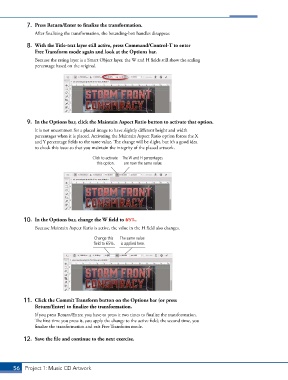
            9.  In the Options bar, click the Maintain Aspect Ratio button to activate that option.
               It is not uncommon for a placed image to have slightly different height and width
               percentages when it is placed. Activating the Maintain Aspect Ratio option forces the X
               and Y percentage fields to the same value. The change will be slight, but it’s a good idea
               to check this issue so that you maintain the integrity of the placed artwork.

                                       Click to activate  The W and H percentages
                                         this option.  are now the same value.


           10.  In the Options bar, change the W field to 65%.
               Because Maintain Aspect Ratio is active, the value in the H field also changes.

                                        Change this   The same value
                                        field to 65%.  is applied here.


           11.  Click the Commit Transform button on the Options bar (or press
               Return/Enter) to finalize the transformation.
               If you press Return/Enter, you have to press it two times to finalize the transformation.
               The first time you press it, you apply the change to the active field; the second time, you
               finalize the transformation and exit Free Transform mode.

           12.  Save the file and continue to the next exercise.


       56 Project 1: Music CD Artwork

