


Page 32 - CC2018_PS_Look_Inside
P. 32
crEatE a fEathErEd sElEctIon
          The Marquee tool you used in the previous exercise created a basic rectangular
          selection. The basic Lasso tool works like a pencil, following the path where you drag
          the mouse; you will use that method in this exercise.

            1.  With cd-artwork.psd open, open Lightning.jpg from your WIP>Music folder.

            2.  Choose the Lasso tool in the Tools panel. In the Control panel, choose the
               New Selection option.
               Most options in the Control panel are the same for the Lasso tool as they are for the
               Marquee tools.

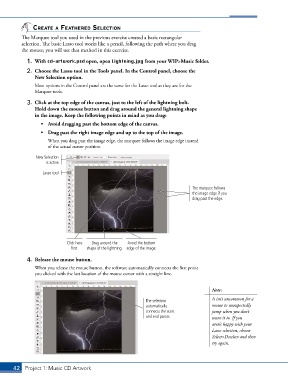
            3.  Click at the top edge of the canvas, just to the left of the lightning bolt.
               Hold down the mouse button and drag around the general lightning shape
               in the image. Keep the following points in mind as you drag:
                  •  Avoid dragging past the bottom edge of the canvas.
                  •  Drag past the right image edge and up to the top of the image.

                     When you drag past the image edge, the marquee follows the image edge instead
                     of the actual cursor position.

                New Selection
                    is active.

                   Lasso tool


                                                                                The marquee follows
                                                                                the image edge if you
                                                                                drag past the edge.


                             Click here   Drag around the   Avoid the bottom
                              first.  shape of the lightning.  edge of the image.

            4.  Release the mouse button.
               When you release the mouse button, the software automatically connects the first point
               you clicked with the last location of the mouse cursor with a straight line.


                                                                                        Note:

                                                             The selection              It isn’t uncommon for a
                                                             automatically              mouse to unexpectedly
                                                             connects the start         jump when you don’t
                                                             and end points.            want it to. If you
                                                                                        aren’t happy with your
                                                                                        Lasso selection, choose
                                                                                        Select>Deselect and then
                                                                                        try again.


       42 Project 1: Music CD Artwork

