


Page 37 - CC2018_PS_Look_Inside
P. 37
placE fIlEs as smart objEct layErs
              As you have seen in the last few exercises, copying layer content from one file to
              another results in new regular layers for the pasted content. Photoshop also supports   Note:
              Smart Object layers, in which you place one file into another instead of pasting layer   Smart Objects provide
              content. Smart Objects provide a number of advantages over regular layers, which you   extremely tight
              will explore later in this project. In this exercise, you will create a Smart Object layer   integration between
              for the remaining image element.                                              Adobe Photoshop and
                                                                                            Adobe Illustrator. You
                1.  With cd-artwork.psd open, choose File>Place Embedded.                   can take advantage
                   Two options in the File menu — Place Embedded and Place Linked — give you the   of the sophisticated
                   option to embed the placed file data into the active file, or to place smart objects as links   vector-editing features in
                   to the original placed file. (See Page 48 for more about placing linked files.)   Adobe Illustrator, and
                                                                                            then place those files into
                2.  Choose the Title-text.psd file (in your WIP>Music folder) and click Place.   Photoshop without losing
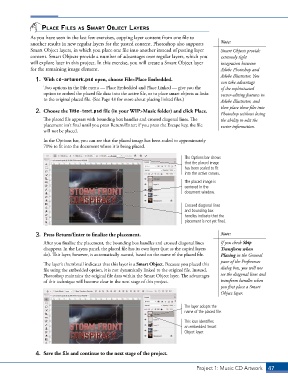
                   The placed file appears with bounding box handles and crossed diagonal lines. The   the ability to edit the
                   placement isn’t final until you press Return/Enter; if you press the Escape key, the file   vector information.
                   will not be placed.
                   In the Options bar, you can see that the placed image has been scaled to approximately
                   70% to fit into the document where it is being placed.

                                                                             The Options bar shows
                                                                             that the placed image
                                                                             has been scaled to fit
                                                                             into the active canvas.
                                                                             The placed image is
                                                                             centered in the
                                                                             document window.

                                                                             Crossed diagonal lines
                                                                             and bounding box
                                                                             handles indicate that the
                                                                             placement is not yet final.


                3.  Press Return/Enter to finalize the placement.                           Note:
                   After you finalize the placement, the bounding box handles and crossed diagonal lines   If you check Skip
                   disappear. In the Layers panel, the placed file has its own layer (just as the copied layers   Transform when
                   do). This layer, however, is automatically named, based on the name of the placed file.   Placing in the General
                                                                                            pane of the Preferences
                   The layer’s thumbnail indicates that this layer is a Smart Object. Because you placed this
                   file using the embedded option, it is not dynamically linked to the original file. Instead,   dialog box, you will not
                   Photoshop maintains the original file data within the Smart Object layer. The advantages   see the diagonal lines and
                   of this technique will become clear in the next stage of this project.   transform handles when
                                                                                            you first place a Smart
                                                                                            Object layer.

                                                                             The layer adopts the
                                                                             name of the placed file.
                                                                             This icon identifies
                                                                             an embedded Smart
                                                                             Object layer.


                4.  Save the file and continue to the next stage of the project.


                                                                                  Project 1: Music CD Artwork   47

