


Page 35 - CC2018_PS_Look_Inside
P. 35
rastErIzE a vEctor fIlE
              Logos and title treatments — such as the ones you will use in this project — are
              commonly created as vector graphics. Although Photoshop is typically a pixel-based
              application, you can also open and work with vector graphics created in illustration
              programs like Adobe Illustrator.
                1.  With cd-artwork.psd open, choose File>Open. Select HHT-logo.ai (in your
                   WIP>Music folder) and then click Open.
                   This is an Adobe Illustrator file of the band’s logo. The Format
                   menu defaults to Photoshop PDF because Illustrator uses PDF
                   as its underlying file structure.

                   When you open a vector file (Illustrator, EPS, or PDF) in
                   Photoshop, it is rasterized (converted to a raster graphic). The
                   resulting Import PDF dialog box allows you to determine
                   exactly what and how to rasterize the file.

                   The Crop To options determine the outside dimensions of the
                   opened file. Depending on how the file was created, some of
                   these values might be the same as others:
                      •  Bounding Box is the outermost edges of the artwork in the file.    Note:
                      •  Media Box is the size of the paper as defined in the file.         If you’re opening a
                      •  Crop Box is the size of the page/artboard including printer’s marks.  multi-page PDF or an
                      •  Bleed Box is the trim size plus any defined bleed allowance.       Illustrator file with more
                                                                                            than one artboard, the
                      •  Trim Box is the trim size as defined in the file.
                                                                                            preview window on the
                      •  Art Box is the area of the page as defined in the file.
                                                                                            left side of the dialog
                   The Image Size fields default to the settings of the bounding box you select. You can   box shows thumbnails of
                   change the size, resolution, color mode, and bit depth by entering new values. You can   each “page” in the file.
                   check the Constrain Proportions option to keep the height and width proportional to   You can click a specific
                   the original dimensions.                                                 thumbnail to select
                                                                                            anything other than
                2.  Make sure Bounding Box is selected in the Crop To field, and the        Page 1. (Press Shift and
                   Resolution field is set to 300 pixels/inch.                              click to select multiple
                                                                                            consecutive pages, or press
                3.  Click OK.                                                               Command/Control and
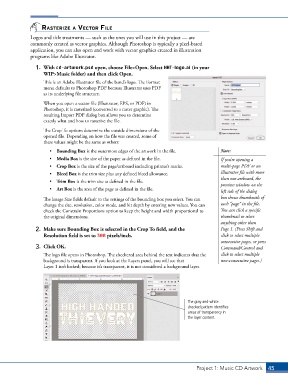
                   The logo file opens in Photoshop. The checkered area behind the text indicates that the   click to select multiple
                   background is transparent. If you look at the Layers panel, you will see that    non-consecutive pages.)
                   Layer 1 isn’t locked; because it’s transparent, it is not considered a background layer.


                                                                               The gray-and-white
                                                                               checked pattern identifies
                                                                               areas of transparency in
                                                                               the layer content.


                                                                                  Project 1: Music CD Artwork   45

