


Page 55 - Adobe Photoshop CC 2020
P. 55
Create and Refine a Color-Based Selection
            Many images have both hard and soft edges, and/or very fine detail that needs to be
            isolated from its background (think of a model’s blowing hair overlapping the title
            on the cover of a magazine). In this exercise, you are going to use two techniques to
            isolate the woman’s silhouette and the ground on which she is sitting in the Sunrise
            image layer.

              1.  With cd-artwork.psd open, hide all but the Sunrise layer. Click the
                 Sunrise layer to make it active.

              2.  Choose View>Show>Guides.
                 Now that the file elements are in place, you can turn off the guides so that they do not
                 distract from the work you will do in the rest of this project.
                 You can also press Command/Control-; to toggle the visibility of guides.

              3.  Choose the Quick Selection tool in the Tools panel.

              4.  In the Options bar, make sure the Sample All Layers option is not checked.
                 You only want to select an area based on the Sunrise layer content, so you do not want
                 to make a selection based on the content of other layers in the file.

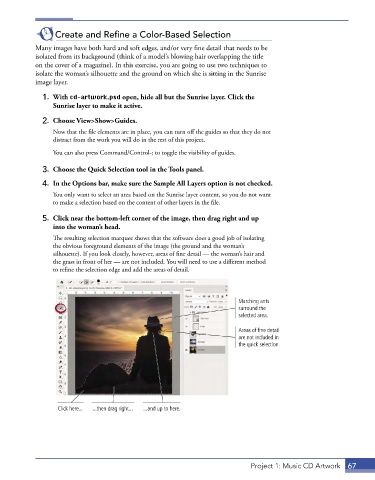
              5.  Click near the bottom-left corner of the image, then drag right and up
                 into the woman’s head.
                 The resulting selection marquee shows that the software does a good job of isolating
                 the obvious foreground elements of the image (the ground and the woman’s
                 silhouette). If you look closely, however, areas of fine detail — the woman’s hair and
                 the grass in front of her — are not included. You will need to use a different method
                 to refine the selection edge and add the areas of detail.


                                                                          Marching ants
                                                                          surround the
                                                                          selected area.

                                                                          Areas of fine detail
                                                                          are not included in
                                                                          the quick selection.


                   Click here...  ...then drag right...  ...and up to here.


                                                                              Project 1: Music CD Artwork  67

