


Page 50 - Adobe Photoshop CC 2020
P. 50
5.  Choose Edit>Undo Layer Visibility.
               The Undo command affects the last action you performed.
               The actual Undo menu command changes to reflect the                      Note:
               action that will be undone.
                                                                                        You can press
           6.  Choose Edit>Undo Flip Canvas Horizontal.                                 Command/Control-

               Photoshop supports multiple Undo commands. You can use                   Shift-Z to redo the last
               the Undo command to step back through multiple actions.                  undone action.

           7.  In the Layers panel, click the Lock icon on the Background layer.
               Clicking the Lock icon unlocks the layer and immediately converts the previous
               Background layer to a regular layer named “Layer 0.”

                                Click the lock icon             The layer is automatically
                                to unlock the                   converted to a regular
                                Background layer.               layer named Layer 0.

           8.  Double-click the Layer 0 layer name to highlight it, then type Sunrise to
               rename the layer. Press Return/Enter to finalize the new layer name.

           9.  With the Sunrise layer selected, choose Edit>Transform>Flip Horizontal.
               Because the layer is no longer locked, you can now access and apply the transform
               commands that affect only the selected layer.

          10.  Show the Logotypes layer group again.
               Because you flipped only the selected layer, the Title-text and Logo layers are not
               flipped; they appear in the correct position and orientation.

          11.  Choose the Logo layer in the Layers panel.

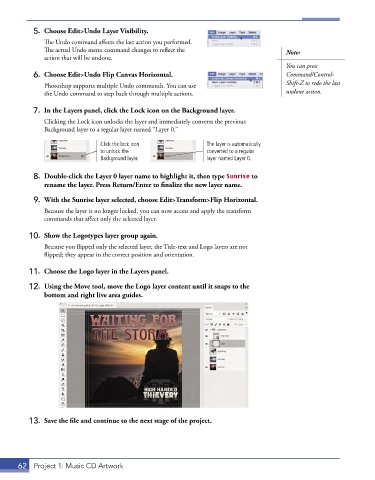
          12.  Using the Move tool, move the Logo layer content until it snaps to the
              bottom and right live area guides.


          13.  Save the file and continue to the next stage of the project.


       62  Project 1: Music CD Artwork

