


Page 52 - Adobe Photoshop CC 2020
P. 52
STAGE 3 / Creating Complex Selections

         Photoshop includes a number of options for making selections based on the color content of an
         image. The method you use will vary depending on the actual content of your image, as well as what
         you hope to accomplish.

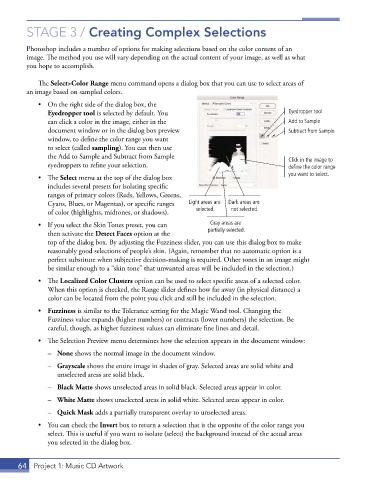
             The Select>Color Range menu command opens a dialog box that you can use to select areas of
         an image based on sampled colors.
             •  On the right side of the dialog box, the
                Eyedropper tool is selected by default. You                              Eyedropper tool
                can click a color in the image, either in the                            Add to Sample
                document window or in the dialog box preview                             Subtract from Sample
                window, to define the color range you want
                to select (called sampling). You can then use
                the Add to Sample and Subtract from Sample                               Click in the image to
                eyedroppers to refine your selection.                                    define the color range
             •  The Select menu at the top of the dialog box                             you want to select.
                includes several presets for isolating specific
                ranges of primary colors (Reds, Yellows, Greens,
                Cyans, Blues, or Magentas), or specific ranges   Light areas are   Dark areas are
                of color (highlights, midtones, or shadows).   selected.  not selected.
             •  If you select the Skin Tones preset, you can     Gray areas are
                then activate the Detect Faces option at the    partially selected.
                top of the dialog box. By adjusting the Fuzziness slider, you can use this dialog box to make
                reasonably good selections of people’s skin. (Again, remember that no automatic option is a
                perfect substitute when subjective decision-making is required. Other tones in an image might
                be similar enough to a “skin tone” that unwanted areas will be included in the selection.)

             •  The Localized Color Clusters option can be used to select specific areas of a selected color.
                When this option is checked, the Range slider defines how far away (in physical distance) a
                color can be located from the point you click and still be included in the selection.
             •  Fuzziness is similar to the Tolerance setting for the Magic Wand tool. Changing the
                Fuzziness value expands (higher numbers) or contracts (lower numbers) the selection. Be
                careful, though, as higher fuzziness values can eliminate fine lines and detail.
             •  The Selection Preview menu determines how the selection appears in the document window:
                –  None shows the normal image in the document window.

                –  Grayscale shows the entire image in shades of gray. Selected areas are solid white and
                  unselected areas are solid black.

                –  Black Matte shows unselected areas in solid black. Selected areas appear in color.
                –  White Matte shows unselected areas in solid white. Selected areas appear in color.

                –  Quick Mask adds a partially transparent overlay to unselected areas.
             •  You can check the Invert box to return a selection that is the opposite of the color range you
                select. This is useful if you want to isolate (select) the background instead of the actual areas
                you selected in the dialog box.


       64  Project 1: Music CD Artwork

