


Page 51 - Adobe Photoshop CC 2020
P. 51
Navigating the Photoshop File History

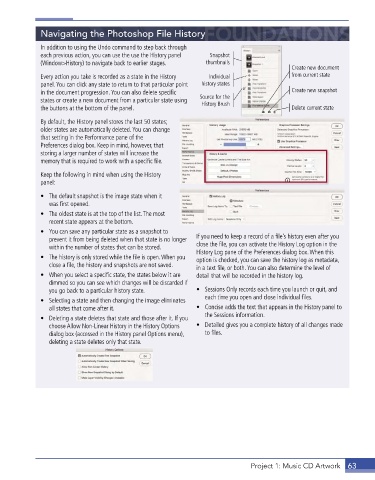
             In addition to using the Undo command to step back through
             each previous action, you can use the use the History panel   Snapshot
             (Window>History) to navigate back to earlier stages .  thumbnails
                                                                                          Create new document
             Every action you take is recorded as a state in the History   Individual     from current state
             panel . You can click any state to return to that particular point   history states
             in the document progression . You can also delete specific                   Create new snapshot
             states or create a new document from a particular state using   Source for the
                                                               History Brush
             the buttons at the bottom of the panel .                                     Delete current state
             By default, the History panel stores the last 50 states;
             older states are automatically deleted . You can change
             that setting in the Performance pane of the
             Preferences dialog box . Keep in mind, however, that
             storing a larger number of states will increase the
             memory that is required to work with a specific file .
             Keep the following in mind when using the History
             panel:

             •  The default snapshot is the image state when it
                was first opened .
             •  The oldest state is at the top of the list . The most
                recent state appears at the bottom .
             •  You can save any particular state as a snapshot to
                prevent it from being deleted when that state is no longer   If you need to keep a record of a file’s history even after you
                within the number of states that can be stored .  close the file, you can activate the History Log option in the
                                                             History Log pane of the Preferences dialog box . When this
             •  The history is only stored while the file is open . When you   option is checked, you can save the history log as metadata,
                close a file, the history and snapshots are not saved .   in a text file, or both . You can also determine the level of
             •  When you select a specific state, the states below it are   detail that will be recorded in the history log .
                dimmed so you can see which changes will be discarded if
                you go back to a particular history state .  •  Sessions Only records each time you launch or quit, and
                                                                each time you open and close individual files .
             •  Selecting a state and then changing the image eliminates
                all states that come after it .              •  Concise adds the text that appears in the History panel to
                                                                the Sessions information .
             •  Deleting a state deletes that state and those after it . If you
                choose Allow Non-Linear History in the History Options   •  Detailed gives you a complete history of all changes made
                dialog box (accessed in the History panel Options menu),   to files .
                deleting a state deletes only that state .


                                                                              Project 1: Music CD Artwork  63

