


Page 32 - Adobe Photoshop CC 2020
P. 32
9.  Choose Edit>Copy.                                                        Note:
               The standard Cut, Copy, and Paste options are available in Photoshop, just as they are   If you want to move
               in most applications. Whatever you have selected will be copied to the Clipboard, and
               whatever is in the Clipboard will be pasted.                             a marquee, make sure
                                                                                        the Marquee tool is still
          10.  Click the Close button on the Tornado.jpg document tab to close that file.  selected. If the Move tool
                                                                                        is active, clicking inside
          11.  With the cd-artwork.psd file active, choose Edit>Paste.                  the marquee and drag-
               The copied selection is pasted in the center of the document window. If you remember   ging will actually move
               from the Image Size dialog box, the tornado image was approximately 30″ × 20″ at   the contents within the
               150 ppi. Photoshop cannot maintain multiple resolutions in a single file. When you   selection area.
               paste the copied content into the cd-artwork file, it adopts the resolution of the target
               file (in this case, 300 ppi). The concept of effective resolution transforms the selected
               area (20.5″ × 18″) of the tornado image to approximately 10.25″ × 9″ at 300 ppi.  Note:
                                                                                        When creating a new se-
          12.  Open the Layers panel (Window>Layers).
                                                                                        lection with a marquee
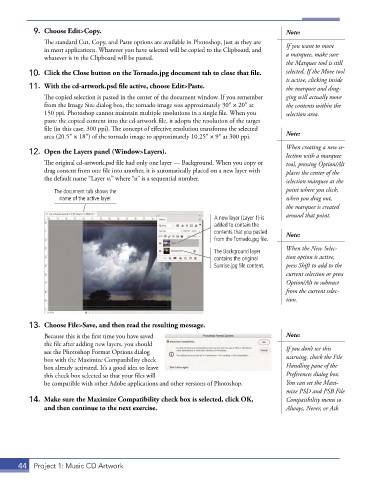
               The original cd-artwork.psd file had only one layer — Background. When you copy or   tool, pressing Option/Alt
               drag content from one file into another, it is automatically placed on a new layer with   places the center of the
               the default name “Layer n,” where “n” is a sequential number.            selection marquee at the

                  The document tab shows the                                            point where you click;
                   name of the active layer.                                            when you drag out,
                                                                                        the marquee is created
                                                                  A new layer (Layer 1) is   around that point.
                                                                  added to contain the
                                                                  contents that you pasted   Note:
                                                                  from the Tornado.jpg file.
                                                                                        When the New Selec-
                                                                  The Background layer
                                                                  contains the original   tion option is active,
                                                                  Sunrise.jpg file content.  press Shift to add to the
                                                                                        current selection or press
                                                                                        Option/Alt to subtract
                                                                                        from the current selec-
                                                                                        tion.


          13.  Choose File>Save, and then read the resulting message.
               Because this is the first time you have saved                            Note:
               the file after adding new layers, you should
               see the Photoshop Format Options dialog                                  If you don’t see this
               box with the Maximize Compatibility check                                warning, check the File
               box already activated. It’s a good idea to leave                         Handling pane of the
               this check box selected so that your files will                          Preferences dialog box.
               be compatible with other Adobe applications and other versions of Photoshop.  You can set the Maxi-
                                                                                        mize PSD and PSB File
          14.  Make sure the Maximize Compatibility check box is selected, click OK,    Compatibility menu to
              and then continue to the next exercise.                                   Always, Never, or Ask.


       44  Project 1: Music CD Artwork

