


Page 33 - Adobe Photoshop CC 2020
P. 33
Create a Feathered Selection
            The Marquee tool you used in the previous exercise created a basic rectangular
            selection. The basic Lasso tool works like a pencil, following the path where you drag
            the mouse; you will use that method in this exercise.
              1.  With cd-artwork.psd open, open Lightning.jpg from your WIP>Music folder.

              2.  Choose the Lasso tool in the Tools panel. In the Control panel, choose the
                 New Selection option.
                 Most options in the Control panel are the same for the Lasso tool as they are for the
                 Marquee tools.

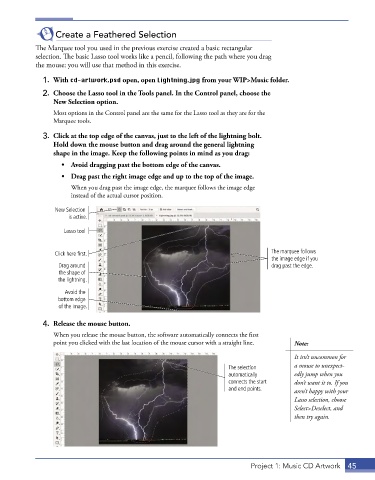
              3.  Click at the top edge of the canvas, just to the left of the lightning bolt.
                 Hold down the mouse button and drag around the general lightning
                 shape in the image. Keep the following points in mind as you drag:
                    •  Avoid dragging past the bottom edge of the canvas.

                    •  Drag past the right image edge and up to the top of the image.
                       When you drag past the image edge, the marquee follows the image edge
                       instead of the actual cursor position.

                  New Selection
                      is active.
                     Lasso tool


                  Click here first.                                                 The marquee follows
                                                                                    the image edge if you
                   Drag around                                                      drag past the edge.
                   the shape of
                   the lightning.
                     Avoid the
                   bottom edge
                   of the image.

              4.  Release the mouse button.
                 When you release the mouse button, the software automatically connects the first
                 point you clicked with the last location of the mouse cursor with a straight line.   Note:

                                                                                           It isn’t uncommon for
                                                                       The selection       a mouse to unexpect-
                                                                       automatically       edly jump when you
                                                                       connects the start   don’t want it to. If you
                                                                       and end points.     aren’t happy with your
                                                                                           Lasso selection, choose
                                                                                           Select>Deselect, and
                                                                                           then try again.


                                                                              Project 1: Music CD Artwork  45

