


Page 54 - Adobe Indesign CC 2020
P. 54
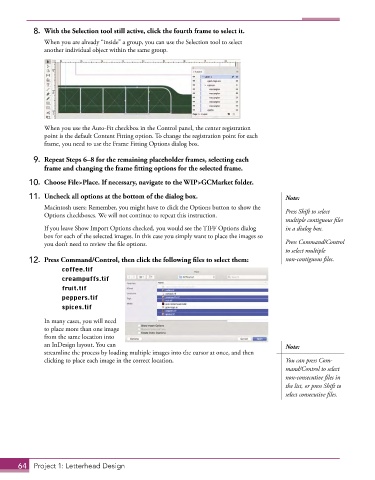
8.  With the Selection tool still active, click the fourth frame to select it.
               When you are already “inside” a group, you can use the Selection tool to select
               another individual object within the same group.


               When you use the Auto-Fit checkbox in the Control panel, the center registration
               point is the default Content Fitting option. To change the registration point for each
               frame, you need to use the Frame Fitting Options dialog box.

           9.  Repeat Steps 6–8 for the remaining placeholder frames, selecting each
              frame and changing the frame fitting options for the selected frame.

          10.  Choose File>Place. If necessary, navigate to the WIP>GCMarket folder.
          11.  Uncheck all options at the bottom of the dialog box.                     Note:

               Macintosh users: Remember, you might have to click the Options button to show the   Press Shift to select
               Options checkboxes. We will not continue to repeat this instruction.
                                                                                        multiple contiguous files
               If you leave Show Import Options checked, you would see the TIFF Options dialog   in a dialog box.
               box for each of the selected images. In this case you simply want to place the images so
               you don’t need to review the file options.                               Press Command/Control
                                                                                        to select multiple
          12.  Press Command/Control, then click the following files to select them:    non-contiguous files.
                    coffee.tif
                    creampuffs.tif
                    fruit.tif
                    peppers.tif
                    spices.tif
               In many cases, you will need
               to place more than one image
               from the same location into
               an InDesign layout. You can                                              Note:
               streamline the process by loading multiple images into the cursor at once, and then
               clicking to place each image in the correct location.                    You can press Com-
                                                                                        mand/Control to select
                                                                                        non-consecutive files in
                                                                                        the list, or press Shift to
                                                                                        select consecutive files.


       64  Project 1: Letterhead Design

