


Page 50 - Adobe Indesign CC 2020
P. 50
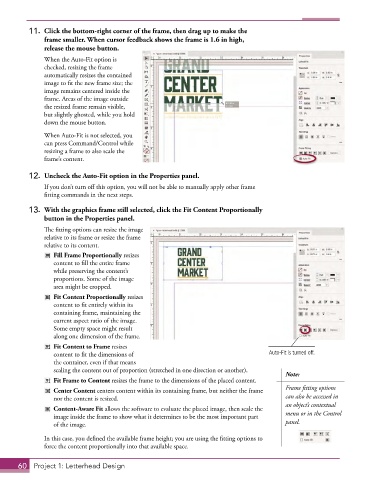
11.  Click the bottom-right corner of the frame, then drag up to make the
              frame smaller. When cursor feedback shows the frame is 1.6 in high,
              release the mouse button.
               When the Auto-Fit option is
               checked, resizing the frame
               automatically resizes the contained
               image to fit the new frame size; the
               image remains centered inside the
               frame. Areas of the image outside
               the resized frame remain visible,
               but slightly ghosted, while you hold
               down the mouse button.

               When Auto-Fit is not selected, you
               can press Command/Control while
               resizing a frame to also scale the
               frame’s content.

          12.  Uncheck the Auto-Fit option in the Properties panel.
               If you don’t turn off this option, you will not be able to manually apply other frame
               fitting commands in the next steps.

          13.  With the graphics frame still selected, click the Fit Content Proportionally
              button in the Properties panel.
               The fitting options can resize the image
               relative to its frame or resize the frame
               relative to its content.
                   Fill Frame Proportionally resizes
                 content to fill the entire frame
                 while preserving the content’s
                 proportions. Some of the image
                 area might be cropped.
                   Fit Content Proportionally resizes
                 content to fit entirely within its
                 containing frame, maintaining the
                 current aspect ratio of the image.
                 Some empty space might result
                 along one dimension of the frame.
                   Fit Content to Frame resizes
                 content to fit the dimensions of                                  Auto-Fit is turned off.
                 the container, even if that means
                 scaling the content out of proportion (stretched in one direction or another).
                                                                                        Note:
                   Fit Frame to Content resizes the frame to the dimensions of the placed content.
                   Center Content centers content within its containing frame, but neither the frame   Frame fitting options
                 nor the content is resized.                                            can also be accessed in
                                                                                        an object’s contextual
                   Content-Aware Fit allows the software to evaluate the placed image, then scale the
                 image inside the frame to show what it determines to be the most important part   menu or in the Control
                 of the image.                                                          panel.

              In this case, you defined the available frame height; you are using the fitting options to
              force the content proportionally into that available space.


       60  Project 1: Letterhead Design

