


Page 39 - Adobe Indesign CC 2020
P. 39
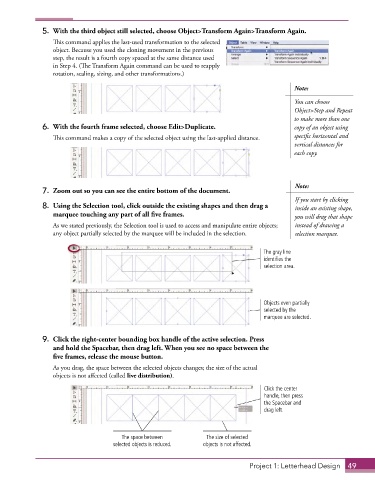
5.  With the third object still selected, choose Object>Transform Again>Transform Again.
                 This command applies the last-used transformation to the selected
                 object. Because you used the cloning movement in the previous
                 step, the result is a fourth copy spaced at the same distance used
                 in Step 4. (The Transform Again command can be used to reapply
                 rotation, scaling, sizing, and other transformations.)

                                                                                           Note:

                                                                                           You can choose
                                                                                           Object>Step and Repeat
                                                                                           to make more than one
              6.  With the fourth frame selected, choose Edit>Duplicate.                   copy of an object using

                 This command makes a copy of the selected object using the last-applied distance.   specific horizontal and
                                                                                           vertical distances for
                                                                                           each copy.


                                                                                           Note:
              7.  Zoom out so you can see the entire bottom of the document.
                                                                                           If you start by clicking
              8.  Using the Selection tool, click outside the existing shapes and then drag a   inside an existing shape,
                 marquee touching any part of all five frames.                             you will drag that shape
                 As we stated previously, the Selection tool is used to access and manipulate entire objects;   instead of drawing a
                 any object partially selected by the marquee will be included in the selection.   selection marquee.

                                                                                 The gray line
                                                                                 identifies the
                                                                                 selection area.


                                                                                 Objects even partially
                                                                                 selected by the
                                                                                 marquee are selected.


              9.  Click the right-center bounding box handle of the active selection. Press
                 and hold the Spacebar, then drag left. When you see no space between the
                 five frames, release the mouse button.
                 As you drag, the space between the selected objects changes; the size of the actual
                 objects is not affected (called live distribution).
                                                                                  Click the center
                                                                                  handle, then press
                                                                                  the Spacebar and
                                                                                  drag left.


                                      The space between         The size of selected
                                    selected objects is reduced.  objects is not affected.


                                                                             Project 1: Letterhead Design  49

