


Page 35 - Adobe Indesign CC 2020
P. 35
Create a Basic Graphics Frame
            When you place an external image file into an InDesign layout, it is contained in a
            frame. If you simply place the file into a layout, a containing frame is automatically
            created for you based on the dimensions of the placed image. You can also create
            graphic frames before placing images, which can be useful if you want to define the
            available space without using the actual external files.
               InDesign includes two groups of tools for creating basic shapes
            in a layout: the frame tools and the shape tools. There is no practical
            difference between the shapes created with the two sets of tools (for
            example, a rectangle created with the Rectangle Frame tool or with the
            Rectangle tool). The frame tools create empty graphic frames, which
            are identified by crossed diagonal lines when Frame Edges are visible in
            the layout (View>Extras>Show Frame Edges). Basic shapes do not have
            these lines; however, if you place content into a shape created with one of the basic
            shape tools, it is automatically converted to a graphic frame.
               In this exercise, you will create the first of five graphic frames to hold the client’s
            thumbnail images.

              1.  With gcm-letterhead.indd open, choose the Rectangle Frame tool in the
                 Tools panel.
                 If you don’t see the Rectangle Frame tool, click and hold the default shape tool until
                 the nested tools appear; slide over and down to select the Rectangle Frame tool.

              2.  Press Command/Control, then click away from the existing shape to make   Note:
                 sure it is deselected.
                 If you don’t deselect the existing shape, the changes you make in the next step would   To deselect objects,
                 affect the selected object.                                               you can also choose
                                                                                           Edit>Deselect All.
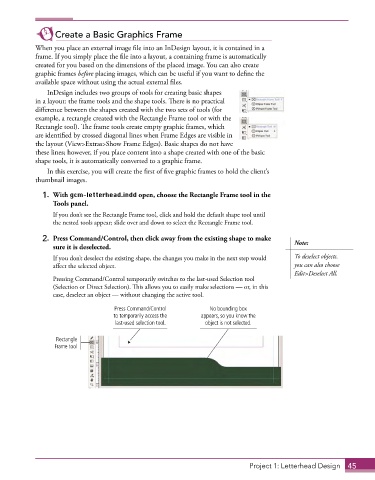
                 Pressing Command/Control temporarily switches to the last-used Selection tool
                 (Selection or Direct Selection). This allows you to easily make selections — or, in this
                 case, deselect an object — without changing the active tool.

                                    Press Command/Control        No bounding box
                                    to temporarily access the   appears, so you know the
                                    last-used selection tool.   object is not selected.

                  Rectangle
                  Frame tool


                                                                             Project 1: Letterhead Design  45

