


Page 30 - CS6_AI_Look_Inside.pdf
P. 30
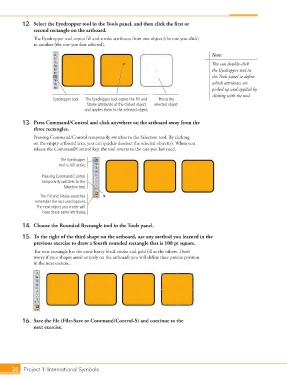
12.  Select the Eyedropper tool in the Tools panel, and then click the first or
                    second rectangle on the artboard.
                    The Eyedropper tool copies fill and stroke attributes from one object (the one you click)
                    to another (the one you first selected).

                                                                                             Note:
                                                                                             You can double-click
                                                                                             the Eyedropper tool in
                                                                                             the Tools panel to define
                                                                                             which attributes are
                                                                                             picked up and applied by
                                                                                             clicking with the tool.
                            Eyedropper tool  The Eyedropper tool copies the Fill and   This is the
                                          Stroke attributes of the clicked object   selected object.
                                         and applies them to the selected object.

                13.  Press Command/Control and click anywhere on the artboard away from the
                    three rectangles.
                    Pressing Command/Control temporarily switches to the Selection tool. By clicking
                    on the empty artboard area, you can quickly deselect the selected object(s). When you
                    release the Command/Control key, the tool reverts to the one you last used.

                               The Eyedropper
                               tool is still active.

                       Pressing Command/Control
                        temporarily switches to the
                                 Selection tool.

                       The Fill and Stroke swatches
                     remember the last-used options.
                      The next object you create will
                        have these same attributes.

                14.  Choose the Rounded Rectangle tool in the Tools panel.

                15.  To the right of the third shape on the artboard, use any method you learned in the
                    previous exercise to draw a fourth rounded rectangle that is 108 pt square.
                    The new rectangle has the same heavy black stroke and gold fill as the others. Don’t
                    worry if your shapes aren’t entirely on the artboard; you will define their precise position
                    in the next exercise.


                16.  Save the file (File>Save or Command/Control-S) and continue to the
                    next exercise.


           38 Project 1: International Symbols

