


Page 26 - CS6_AI_Look_Inside.pdf
P. 26
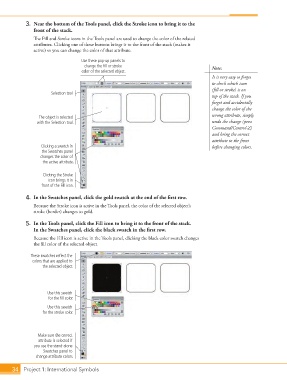
3.  Near the bottom of the Tools panel, click the Stroke icon to bring it to the
                    front of the stack.
                    The Fill and Stroke icons in the Tools panel are used to change the color of the related
                    attributes. Clicking one of these buttons brings it to the front of the stack (makes it
                    active) so you can change the color of that attribute.
                                        Use these pop-up panels to
                                         change the fill or stroke                           Note:
                                        color of the selected object.
                                                                                             It is very easy to forget
                                                                                             to check which icon
                                                                                             (fill or stroke) is on
                           Selection tool
                                                                                             top of the stack. If you
                                                                                             forget and accidentally
                                                                                             change the color of the
                                                                                             wrong attribute, simply
                      The object is selected
                      with the Selection tool.                                               undo the change (press
                                                                                             Command/Control-Z)
                                                                                             and bring the correct
                                                                                             attribute to the front
                       Clicking a swatch in                                                  before changing colors.
                        the Swatches panel
                       changes the color of
                        the active attribute.

                        Clicking the Stroke
                          icon brings it in
                       front of the Fill icon.

                 4.  In the Swatches panel, click the gold swatch at the end of the first row.
                    Because the Stroke icon is active in the Tools panel, the color of the selected object’s
                    stroke (border) changes to gold.

                 5.  In the Tools panel, click the Fill icon to bring it to the front of the stack.
                    In the Swatches panel, click the black swatch in the first row.

                    Because the Fill icon is active in the Tools panel, clicking the black color swatch changes
                    the fill color of the selected object.

                   These swatches reflect the
                    colors that are applied to
                        the selected object.


                          Use this swatch
                          for the fill color.
                          Use this swatch
                        for the stroke color.


                      Make sure the correct
                      attribute is selected if
                    you use the stand-alone
                        Swatches panel to
                     change attribute colors.

           34 Project 1: International Symbols

