


Page 31 - CS6_AI_Look_Inside.pdf
P. 31
control oBject Positioning
                  The ability to move objects around on the artboard is one of the advantages of digital
                  drawing. On paper, you have to manually erase items and then redraw them in their
                  new locations. Illustrator offers a number of tools that make it easy to move existing
                  objects around the artboard, either as isolated objects or in relation to other elements
                  on the page. In this exercise, you learn several techniques for moving objects on the
                  artboard.

                    1.  With icons.ai open, change your zoom percentage so you can see all four
                        shapes and the entire top of the artboard.

                    2.  Choose View>Rulers>Show Rulers to show the rulers at the top and left
                        edges of the document window.
                        Because you created this file using points as the default unit of measurement, the
                        rulers — and fields in dialog boxes and panels — show measurements in points.

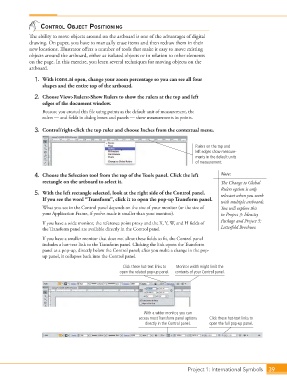
                    3.  Control/right-click the top ruler and choose Inches from the contextual menu.


                                                                                       Rulers on the top and
                                                                                       left edges show measure-
                                                                                       ments in the default units
                                                                                       of measurement.

                    4.  Choose the Selection tool from the top of the Tools panel. Click the left   Note:
                        rectangle on the artboard to select it.                                  The Change to Global
                                                                                                 Rulers option is only
                    5.  With the left rectangle selected, look at the right side of the Control panel.   relevant when you work
                        If you see the word “Transform”, click it to open the pop-up Transform panel.
                                                                                                 with multiple artboards.
                        What you see in the Control panel depends on the size of your monitor (or the size of   You will explore this
                        your Application Frame, if you’ve made it smaller than your monitor).    in Project 3: Identity

                        If you have a wide monitor, the reference point proxy and the X, Y, W, and H fields of   Package and Project 5:
                        the Transform panel are available directly in the Control panel.         Letterfold Brochure.

                        If you have a smaller monitor that does not allow these fields to fit, the Control panel
                        includes a hot-text link to the Transform panel. Clicking the link opens the Transform
                        panel as a pop-up, directly below the Control panel; after you make a change in the pop-
                        up panel, it collapses back into the Control panel.

                                                         Click these hot-text links to   Monitor width might limit the
                                                       open the related pop-up panel.  contents of your Control panel.


                                                                 With a wider monitor, you can
                                                               access most Transform panel options   Click these hot-text links to
                                                                  directly in the Control panel.  open the full pop-up panel.


                                                                                   Project 1: International Symbols  39

