


Page 34 - CS6_AI_Look_Inside.pdf
P. 34
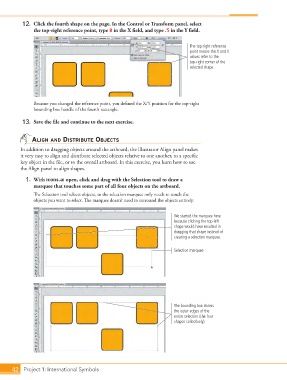
12.  Click the fourth shape on the page. In the Control or Transform panel, select
                    the top-right reference point, type 8 in the X field, and type .5 in the Y field.


                                                                                    The top-right reference
                                                                                    point means the X and Y
                                                                                    values refer to the
                                                                                    top-right corner of the
                                                                                    selected shape.


                    Because you changed the reference point, you defined the X/Y position for the top-right
                    bounding box handle of the fourth rectangle.


                13.  Save the file and continue to the next exercise.


                   align and distriBute oBjects

               In addition to dragging objects around the artboard, the Illustrator Align panel makes
               it very easy to align and distribute selected objects relative to one another, to a specific
               key object in the file, or to the overall artboard. In this exercise, you learn how to use
               the Align panel to align shapes.
                 1.  With icons.ai open, click and drag with the Selection tool to draw a
                    marquee that touches some part of all four objects on the artboard.
                    The Selection tool selects objects, so the selection marquee only needs to touch the
                    objects you want to select. The marquee doesn’t need to surround the objects entirely.


                                                                              We started the marquee here
                                                                              because clicking the top-left
                                                                              shape would have resulted in
                                                                              dragging that shape instead of
                                                                              creating a selection marquee.


                                                                              Selection marquee


                                                                              The bounding box shows
                                                                              the outer edges of the
                                                                              entire selection (the four
                                                                              shapes collectively).


           42 Project 1: International Symbols

