


Page 33 - CS6_AI_Look_Inside.pdf
P. 33
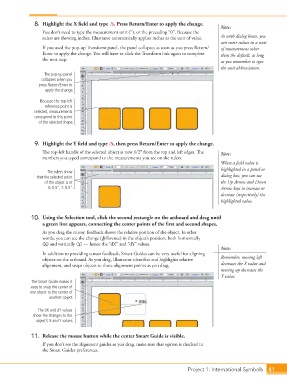
8. Highlight the X field and type .5. Press Return/Enter to apply the change. Note:
You don’t need to type the measurement unit (3), or the preceding “0”. Because the
rulers are showing inches, Illustrator automatically applies inches as the unit of value. As with dialog boxes, you
can enter values in a unit
If you used the pop-up Transform panel, the panel collapses as soon as you press Return/ of measurement other
Enter to apply the change. You will have to click the Transform link again to complete than the default, as long
the next step.
as you remember to type
the unit abbreviation.
The pop-up panel
collapses when you
press Return/Enter to
apply the change.
Because the top-left
reference point is
selected, measurements
correspond to this point
of the selected shape.
9. Highlight the Y field and type .5, then press Return/Enter to apply the change.
The top-left handle of the selected object is now 1/2 from the top and left edges. The Note:
numbers you typed correspond to the measurements you see on the rulers.
When a field value is
highlighted in a panel or
The rulers show
that the selected point dialog box, you can use
of the object is at the Up Arrow and Down
X: 0.5”, Y: 0.5”. Arrow keys to increase or
decrease (respectively) the
highlighted value.
10. Using the Selection tool, click the second rectangle on the artboard and drag until
a green line appears, connecting the center points of the first and second shapes.
As you drag the cursor, feedback shows the relative position of the object. In other
words, you can see the change (difference) in the object’s position, both horizontally
(X) and vertically (Y) — hence the “dX” and “dY” values.
Note:
In addition to providing cursor feedback, Smart Guides can be very useful for aligning
objects on the artboard. As you drag, Illustrator identifies and highlights relative Remember, moving left
alignment, and snaps objects to those alignment points as you drag. decreases the X value and
moving up decreases the
Y value.
The Smart Guide makes it
easy to snap the center of
one object to the center of
another object.
The dX and dY values
show the changes to the
object’s X and Y values.
11. Release the mouse button while the center Smart Guide is visible.
If you don’t see the alignment guides as you drag, make sure that option is checked in
the Smart Guides preferences.
Project 1: International Symbols 41

