


Page 23 - CS6_AI_Look_Inside.pdf
P. 23
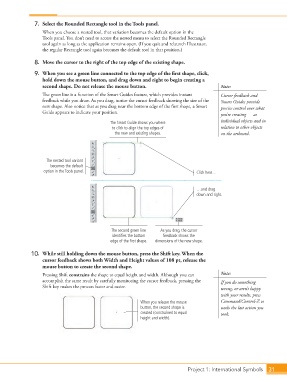
7.  Select the Rounded Rectangle tool in the Tools panel.
                        When you choose a nested tool, that variation becomes the default option in the
                        Tools panel. You don’t need to access the nested menu to select the Rounded Rectangle
                        tool again as long as the application remains open. (If you quit and relaunch Illustrator,
                        the regular Rectangle tool again becomes the default tool in that position.)

                    8.  Move the cursor to the right of the top edge of the existing shape.

                    9.  When you see a green line connected to the top edge of the first shape, click,
                        hold down the mouse button, and drag down and right to begin creating a
                        second shape. Do not release the mouse button.                           Note:
                        The green line is a function of the Smart Guides feature, which provides instant   Cursor feedback and
                        feedback while you draw. As you drag, notice the cursor feedback showing the size of the   Smart Guides provide
                        new shape. Also notice that as you drag near the bottom edge of the first shape, a Smart   precise control over what
                        Guide appears to indicate your position.
                                                                                                 you’re creating — as
                                                    The Smart Guide shows you where              individual objects and in
                                                    to click to align the top edges of           relation to other objects
                                                     the new and existing shapes.                on the artboard.


                         The nested tool variant
                           becomes the default
                        option in the Tools panel.                                     Click here…


                                                                                       …and drag
                                                                                       down and right.


                                                    The second green line   As you drag, the cursor
                                                    identifies the bottom   feedback shows the
                                                    edge of the first shape.  dimensions of the new shape.

                   10.  While still holding down the mouse button, press the Shift key. When the
                        cursor feedback shows both Width and Height values of 108 pt, release the
                        mouse button to create the second shape.
                        Pressing Shift constrains the shape to equal height and width. Although you can   Note:
                        accomplish the same result by carefully monitoring the cursor feedback, pressing the   If you do something
                        Shift key makes the process faster and easier.                           wrong, or aren’t happy
                                                                                                 with your results, press
                                                                When you release the mouse       Command/Control-Z to
                                                                button, the second shape is      undo the last action you
                                                                created (constrained to equal    took.
                                                                height and width).


                                                                                   Project 1: International Symbols  31

