


Page 21 - CS6_AI_Look_Inside.pdf
P. 21
draw Basic shaPes
                  Now that you have a place to draw (the artboard), you’re ready to start creating the
                  icon artwork. The first step of this project requires a set of background shapes —
                  simple rectangles with rounded corners — to contain each icon. Illustrator includes a
                  number of shape tools that make it easy to create this kind of basic shape — rectangles
                  (or squares), ellipses (or circles), and so on.

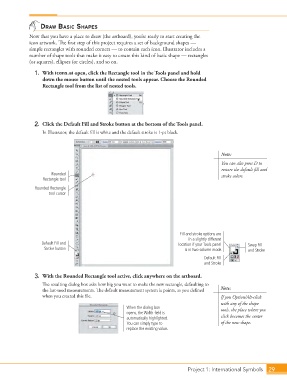
                    1.  With icons.ai open, click the Rectangle tool in the Tools panel and hold
                        down the mouse button until the nested tools appear. Choose the Rounded
                        Rectangle tool from the list of nested tools.


                    2.  Click the Default Fill and Stroke button at the bottom of the Tools panel.
                        In Illustrator, the default fill is white and the default stroke is 1-pt black.


                                                                                                 Note:
                                                                                                 You can also press D to
                                                                                                 restore the default fill and
                            Rounded                                                              stroke colors.
                        Rectangle tool

                     Rounded Rectangle
                          tool cursor


                                                                                Fill and stroke options are
                                                                                    in a slightly different
                       Default Fill and                                         location if your Tools panel   Swap Fill
                         Stroke button                                            is in two-column mode.    and Stroke

                                                                                          Default Fill
                                                                                          and Stroke

                    3.  With the Rounded Rectangle tool active, click anywhere on the artboard.
                        The resulting dialog box asks how big you want to make the new rectangle, defaulting to
                        the last-used measurements. The default measurement system is points, as you defined   Note:
                        when you created this file.                                              If you Option/Alt-click
                                                                                                 with any of the shape
                                                          When the dialog box                    tools, the place where you
                                                          opens, the Width field is
                                                          automatically highlighted.             click becomes the center
                                                          You can simply type to                 of the new shape.
                                                          replace the existing value.


                                                                                   Project 1: International Symbols  29

