


Page 67 - CC2018_AI_Look_Inside
P. 67
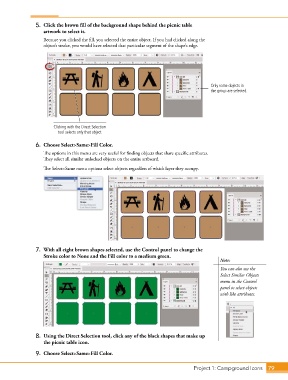
5.  Click the brown fill of the background shape behind the picnic table
                   artwork to select it.

                   Because you clicked the fill, you selected the entire object. If you had clicked along the
                   object’s stroke, you would have selected that particular segment of the shape’s edge.


                                                                                        Only some objects in
                                                                                        the group are selected.


                       Clicking with the Direct Selection
                         tool selects only that object.

                6.  Choose Select>Same>Fill Color.

                   The options in this menu are very useful for finding objects that share specific attributes.
                   They select all similar unlocked objects on the entire artboard.

                   The Select>Same menu options select objects regardless of which layer they occupy.


                7.  With all eight brown shapes selected, use the Control panel to change the
                   Stroke color to None and the Fill color to a medium green.
                                                                                            Note:
                                                                                            You can also use the
                                                                                            Select Similar Objects
                                                                                            menu in the Control
                                                                                            panel to select objects
                                                                                            with like attributes.


                8.  Using the Direct Selection tool, click any of the black shapes that make up
                   the picnic table icon.

                9.  Choose Select>Same>Fill Color.


                                                                                 Project 1: Campground Icons    79

