


Page 62 - CC2018_AI_Look_Inside
P. 62
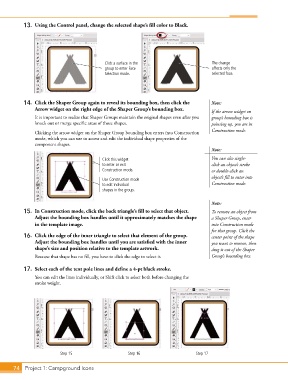
13.  Using the Control panel, change the selected shape’s fill color to Black.


                                            Click a surface in the                      The change
                                            group to enter Face                         affects only the
                                            Selection mode.                             selected face.


           14.  Click the Shaper Group again to reveal its bounding box, then click the   Note:
               Arrow widget on the right edge of the Shaper Group’s bounding box.       If the arrow widget on
               It is important to realize that Shaper Groups maintain the original shapes even after you   group’s bounding box is
               knock out or merge specific areas of those shapes.                       pointing up, you are in
               Clicking the arrow widget on the Shaper Group bounding box enters into Construction   Construction mode.
               mode, which you can use to access and edit the individual shape properties of the
               component shapes.
                                                                                        Note:
                                           Click this widget                            You can also single-
                                           to enter or exit                             click an object’s stroke
                                           Construction mode.                           or double-click an
                                                                                        object’s fill to enter into
                                           Use Construction mode
                                           to edit individual                           Construction mode.
                                           shapes in the group.


                                                                                        Note:
           15.  In Construction mode, click the back triangle’s fill to select that object.   To remove an object from
               Adjust the bounding box handles until it approximately matches the shape   a Shaper Group, enter
               in the template image.                                                   into Construction mode
                                                                                        for that group. Click the
           16.  Click the edge of the inner triangle to select that element of the group.   center point of the shape
               Adjust the bounding box handles until you are satisfied with the inner   you want to remove, then
               shape’s size and position relative to the template artwork.              drag it out of the Shaper
               Because that shape has no fill, you have to click the edge to select it.  Group’s bounding box.

           17.  Select each of the tent pole lines and define a 4-pt black stroke.

               You can edit the lines individually, or Shift click to select both before changing the
               stroke weight.


                          Step 15                     Step 16                     Step 17


       74 Project 1: Campground Icons

