


Page 15 - CS6_DW_Look_Inside
P. 15
Stage 1	 Exploring	Site	Structure


              When you start a new project that involves updating an existing site, your first task is to assess the file
              and folder structure. Doing so gives you a good idea of what the site contains.
                 A small site with only a few pages requires very little organization; in fact, you can place all of
              the files — Web pages and image files — in one folder (although even a small site benefits from a
              dedicated folder for images). Larger sites, however, require careful organization of file names, pages,
              and image files. A good site design with excellent organization speeds development now, and makes it
              much easier to update the site later.


                  CreAte A new site definition

              Web sites are designed so all of the Web pages, image files, style sheets, and other
              resources are stored on your local drive in a base folder called the root folder. Other
              folders can be placed inside (below) the root folder to make it easier to manage and
              organize files.

                1.  Download Kinetic_RF_DW6-2e.zip from the Student Files Web page.

                2.  Expand the ZIP archive in your WIP folder (Macintosh) or copy the archive
                   contents into your WIP folder (Windows).
                   This results in a folder named Kinetic, which contains all the files you need to
                   complete this project.
                   If necessary, refer to Page 11 of the Interface chapter for specific instructions on
                   expanding or accessing the required resource files.
                3.  In Dreamweaver, set up your workspace so the Files, Insert, and Properties
                   panels are visible.
                   It doesn’t matter which saved workspace you start with. The primary tools you need for
                   this project are the Files, Insert, and Properties panels. We have closed all other panels to
                   maximize the available space in our screen shots.

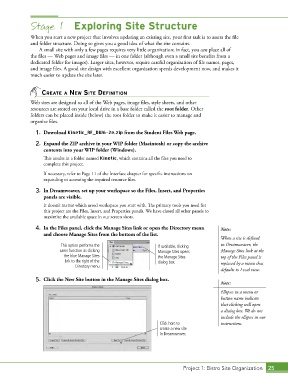
                4.  In the Files panel, click the Manage Sites link or open the Directory menu   Note:
                   and choose Manage Sites from the bottom of the list.
                                                                                            When a site is defined
                          This option performs the                If available, clicking    in Dreamweaver, the
                          same function as clicking               Manage Sites opens        Manage Sites link at the
                           the blue Manage Sites                  the Manage Sites          top of the Files panel is
                            link to the right of the              dialog box.               replaced by a menu that
                                Directory menu.
                                                                                            defaults to Local view.
                5.  Click the New Site button in the Manage Sites dialog box.
                                                                                            Note:
                                                                                            Ellipses in a menu or
                                                                                            button name indicate
                                                                                            that clicking will open
                                                                                            a dialog box. We do not
                                                                                            include the ellipses in our
                                                                   Click here to            instructions.
                                                                   create a new site
                                                                   in Dreamweaver.


                                                                             Project 1: Bistro Site Organization  25

