


Page 43 - Adobe Dream Viewer 2021
P. 43
Uploading Files to a Server

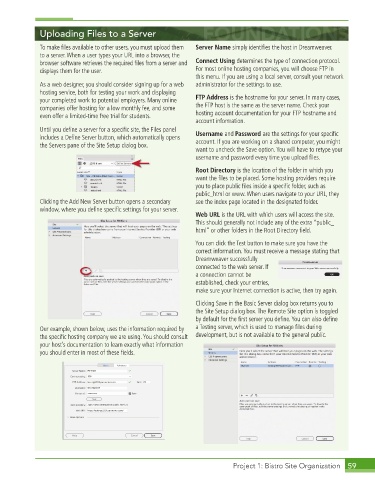
             To make fi les available to other users, you must upload them   Server Name simply identifi es the host in Dreamweaver.
             to a server. When a user types your URL into a browser, the
             browser software retrieves the required fi les from a server and   Connect Using determines the type of connection protocol.
             displays them for the user.                     For most online hosting companies, you will choose FTP in
                                                             this menu. If you are using a local server, consult your network
             As a web designer, you should consider signing up for a web   administrator for the settings to use.
             hosting service, both for testing your work and displaying
             your completed work to potential employers. Many online   FTP Address is the hostname for your server. In many cases,
             companies offer hosting for a low monthly fee, and some   the FTP host is the same as the server name. Check your
             even offer a limited-time free trial for students.  hosting account documentation for your FTP hostname and
                                                             account information.
             Until you defi ne a server for a specifi c site, the Files panel   Username and Password are the settings for your specifi c
             includes a Defi ne Server button, which automatically opens   account. If you are working on a shared computer, you might
             the Servers pane of the Site Setup dialog box.
                                                             want to uncheck the Save option. You will have to retype your
                                                             username and password every time you upload fi les.

                                                             Root Directory is the location of the folder in which you
                                                             want the fi les to be placed. Some hosting providers require
                                                             you to place public fi les inside a specifi c folder, such as
                                                             public_html or www. When users navigate to your URL, they
             Clicking the Add New Server button opens a secondary   see the index page located in the designated folder.
             window, where you defi ne specifi c settings for your server.
                                                             Web URL is the URL with which users will access the site.
                                                             This should generally not include any of the extra “public_
                                                             html” or other folders in the Root Directory fi eld.

                                                             You can click the Test button to make sure you have the
                                                             correct information. You must receive a message stating that
                                                             Dreamweaver successfully
                                                             connected to the web server. If
                                                             a connection cannot be
                                                             established, check your entries,
                                                             make sure your Internet connection is active, then try again.
                                                             Clicking Save in the Basic Server dialog box returns you to
                                                             the Site Setup dialog box. The Remote Site option is toggled
                                                             by default for the fi rst server you defi ne. You can also defi ne
             Our example, shown below, uses the information required by   a Testing server, which is used to manage fi les during
             the specifi c hosting company we are using. You should consult   development, but is not available to the general public.
             your host’s documentation to learn exactly what information
             you should enter in most of these fi elds.


                                                                        Project 1: Bistro Site Organization  59

