


Page 42 - Adobe Dream Viewer 2021
P. 42
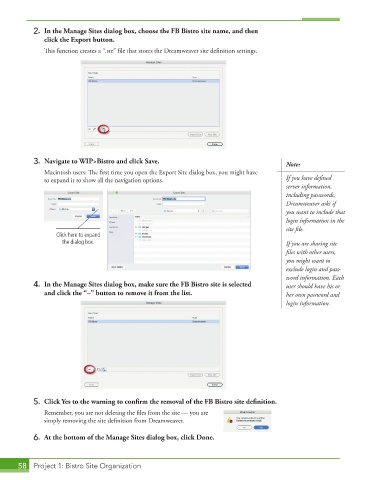
2.  In the Manage Sites dialog box, choose the FB Bistro site name, and then
              click the Export button.
               This function creates a “.ste” file that stores the Dreamweaver site definition settings.


          3.  Navigate to WIP>Bistro and click Save.                                    Note:


               Macintosh users: The first time you open the Export Site dialog box, you might have

               to expand it to show all the navigation options.                         If you have defined
                                                                                        server information,
                                                                                        including passwords,
                                                                                        Dreamweaver asks if
                                                                                        you want to include that
                                                                                        login information in the

                                                                                        site file.
                  Click here to expand
                    the dialog box.                                                     If you are sharing site
                                                                                        files with other users,

                                                                                        you might want to
                                                                                        exclude login and pass-
                                                                                        word information. Each
          4.  In the Manage Sites dialog box, make sure the FB Bistro site is selected   user should have his or
              and click the “–” button to remove it from the list.                      her own password and
                                                                                        login information.


          5.  Click Yes to the warning to confi rm the removal of the FB Bistro site defi nition.
               Remember, you are not deleting the files from the site — you are


               simply removing the site definition from Dreamweaver.
          6.  At the bottom of the Manage Sites dialog box, click Done.


       58  Project 1: Bistro Site Organization

