


Page 23 - CS6_WD_Look_Inside
P. 23
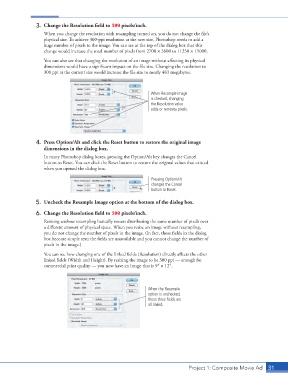
3.  Change the Resolution field to 300 pixels/inch.
                        When you change the resolution with resampling turned on, you do not change the file’s
                        physical size. To achieve 300-ppi resolution at the new size, Photoshop needs to add a
                        huge number of pixels to the image. You can see at the top of the dialog box that this
                        change would increase the total number of pixels from 2700 1 3600 to 11250 1 15000.

                        You can also see that changing the resolution of an image without affecting its physical
                        dimensions would have a significant impact on the file size. Changing the resolution to
                        300 ppi at the current size would increase the file size to nearly 483 megabytes.


                                                                    When Resample Image
                                                                    is checked, changing
                                                                    the Resolution value
                                                                    adds or removes pixels.


                    4.  Press Option/Alt and click the Reset button to restore the original image
                        dimensions in the dialog box.

                        In many Photoshop dialog boxes, pressing the Option/Alt key changes the Cancel
                        button to Reset. You can click the Reset button to restore the original values that existed
                        when you opened the dialog box.
                                                                    Pressing Option/Alt
                                                                    changes the Cancel
                                                                    button to Reset.

                    5.  Uncheck the Resample Image option at the bottom of the dialog box.

                    6.  Change the Resolution field to 300 pixels/inch.
                        Resizing without resampling basically means distributing the same number of pixels over
                        a different amount of physical space. When you resize an image without resampling,
                        you do not change the number of pixels in the image. (In fact, those fields in the dialog
                        box become simple text; the fields are unavailable and you cannot change the number of
                        pixels in the image.)

                        You can see how changing one of the linked fields (Resolution) directly affects the other
                        linked fields (Width and Height). By resizing the image to be 300 ppi — enough for
                        commercial print quality — you now have an image that is 9″ 1 12″.


                                                                   When the Resample
                                                                   option is unchecked,
                                                                   these three fields are
                                                                   all linked.


                                                                                    Project 1: Composite Movie Ad   31

