


Page 73 - CC 2019 WD Look Inside
P. 73
7.  Leave the Pixel Order and Byte Order options at their default values.
                 Pixel Order determines how channel data is encoded. The Interleaved (RGBRGB)
                 option is the default. Per Channel (RRGGBB) is called “planar” order.
                                                                                           Note:
                 Byte Order determines which platform can use the file, although this is somewhat
                 deceptive. Even in older versions of most desktop publishing software, Macintosh   Some experts argue that
                 systems can read the PC byte order, but Windows couldn’t read the Macintosh byte   choosing the order for
                 order. If you don’t know which platform will ultimately be used, choose IBM PC.  your system can improve
                                                                                           print quality, especially
                 Save Image Pyramid creates a tiered file with multiple resolution versions; this isn’t   on desktop devices.
                 widely used or supported by other applications, so you can typically leave it unchecked.
                 If your file contains transparency, the Save Transparency check box will be available. If
                 you don’t choose this option, transparent areas will be white in the saved file.

              8.  Click OK to save the file.
                 When you return to the document, the original native
                 Photoshop file is still active. The TIFF file that you just
                 created is saved in the target location, but it is not the
                 active file because the As a Copy option was checked in the Save As dialog box. If you
                 had included layers, and not intentionally checked the As a Copy option, the active
                 file would be the TIFF file that you saved, instead of the original native Photoshop
                 file.

              9.  Continue to the next exercise.


                  Save a JPEG File for Digital Media

            Your client has also requested a low-resolution JPEG file, using the RGB color
            model. Several extra steps are required to create this file with the required settings.

              1.  With aftermath.psd open in Photoshop, choose File>Save As.
                 To protect your work, you are saving this file with a different file name before making
                 significant destructive changes.

              2.  Choose JPEG in the Format/Save as Type menu. Change the file name to
                 aftermath-web.jpg, and then click Save.
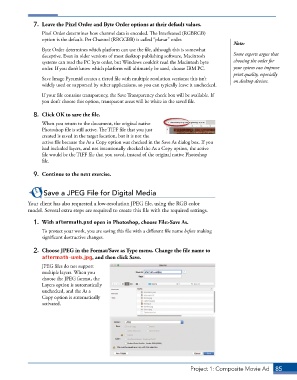
                 JPEG files do not support
                 multiple layers. When you
                 choose the JPEG format, the
                 Layers option is automatically
                 unchecked, and the As a
                 Copy option is automatically
                 activated.


                                                                          Project 1: Composite Movie Ad    85

