


Page 25 - CC 2019 WD Look Inside
P. 25
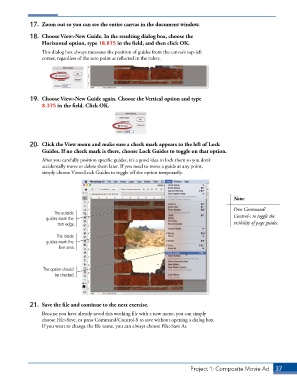
17.  Zoom out so you can see the entire canvas in the document window.

             18.  Choose View>New Guide. In the resulting dialog box, choose the
                 Horizontal option, type 10.875 in the field, and then click OK.
                 This dialog box always measures the position of guides from the canvas’s top-left
                 corner, regardless of the zero point as reflected in the rulers.


             19.  Choose View>New Guide again. Choose the Vertical option and type
                 8.375 in the field. Click OK.


             20.  Click the View menu and make sure a check mark appears to the left of Lock
                 Guides. If no check mark is there, choose Lock Guides to toggle on that option.
                 After you carefully position specific guides, it’s a good idea to lock them so you don’t
                 accidentally move or delete them later. If you need to move a guide at any point,
                 simply choose View>Lock Guides to toggle off the option temporarily.


                                                                                           Note:

                                                                                           Press Command/
                      The outside
                   guides mark the                                                         Control-; to toggle the
                       trim edge.                                                          visibility of page guides.

                       The inside
                   guides mark the
                        live area.


                  The option should
                      be checked.


             21.  Save the file and continue to the next exercise.

                 Because you have already saved this working file with a new name, you can simply
                 choose File>Save, or press Command/Control-S to save without opening a dialog box.
                 If you want to change the file name, you can always choose File>Save As.


                                                                          Project 1: Composite Movie Ad    37

