


Page 18 - CC 2019 WD Look Inside
P. 18
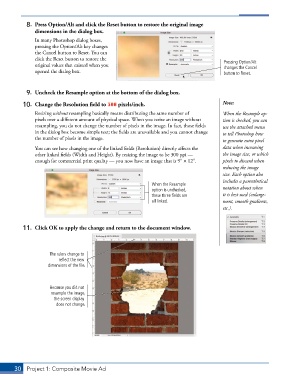
8.  Press Option/Alt and click the Reset button to restore the original image
              dimensions in the dialog box.
               In many Photoshop dialog boxes,
               pressing the Option/Alt key changes
               the Cancel button to Reset. You can
               click the Reset button to restore the
               original values that existed when you                                   Pressing Option/Alt
                                                                                       changes the Cancel
               opened the dialog box.                                                  button to Reset.


           9.  Uncheck the Resample option at the bottom of the dialog box.
          10.  Change the Resolution field to 300 pixels/inch.                         Note:
               Resizing without resampling basically means distributing the same number of   When the Resample op-
               pixels over a different amount of physical space. When you resize an image without   tion is checked, you can
               resampling, you do not change the number of pixels in the image. In fact, those fields   use the attached menu
               in the dialog box become simple text; the fields are unavailable and you cannot change   to tell Photoshop how
               the number of pixels in the image.                                      to generate extra pixel

               You can see how changing one of the linked fields (Resolution) directly affects the   data when increasing
               other linked fields (Width and Height). By resizing the image to be 300 ppi —   the image size, or which
               enough for commercial print quality — you now have an image that is 93 1 123.   pixels to discard when
                                                                                       reducing the image
                                                                                       size. Each option also
                                                                                       includes a parenthetical
                                                            When the Resample
                                                            option is unchecked,       notation about when
                                                            these three fields are     it is best used (enlarge-
                                                            all linked.                ment, smooth gradients,
                                                                                       etc.).


          11.  Click OK to apply the change and return to the document window.


                    The rulers change to
                        reflect the new
                    dimensions of the file.


                    Because you did not
                     resample the image,
                      the screen display
                       does not change.


       30  Project 1: Composite Movie Ad

