


Page 76 - CC2018_WD_Look_Inside
P. 76
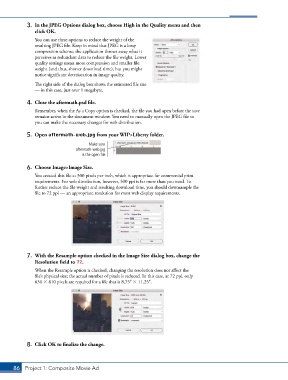
3. In the JPEG Options dialog box, choose High in the Quality menu and then
click OK.
You can use these options to reduce the weight of the
resulting JPEG file. Keep in mind that JPEG is a lossy
compression scheme; the application throws away what it
perceives as redundant data to reduce the file weight. Lower
quality settings mean more compression and smaller file
weight (and thus, shorter download time), but you might
notice significant deterioration in image quality.
The right side of the dialog box shows the estimated file size
— in this case, just over 1 megabyte.
4. Close the aftermath.psd file.
Remember, when the As a Copy option is checked, the file you had open before the save
remains active in the document window. You need to manually open the JPEG file so
you can make the necessary changes for web distribution.
5. Open aftermath-web.jpg from your WIP>Liberty folder.
Make sure
aftermath-web.jpg
is the open file.
6. Choose Image>Image Size.
You created this file at 300 pixels per inch, which is appropriate for commercial print
requirements. For web distribution, however, 300 ppi is far more than you need. To
further reduce the file weight and resulting download time, you should downsample the
file to 72 ppi — an appropriate resolution for most web display requirements.
7. With the Resample option checked in the Image Size dialog box, change the
Resolution field to 72.
When the Resample option is checked, changing the resolution does not affect the
file’s physical size; the actual number of pixels is reduced. In this case, at 72 ppi, only
630 810 pixels are required for a file that is 8.75 11.25.
8. Click OK to finalize the change.
86 Project 1: Composite Movie Ad

