


Page 38 - CS6_GD_Look_Inside.pdf
P. 38
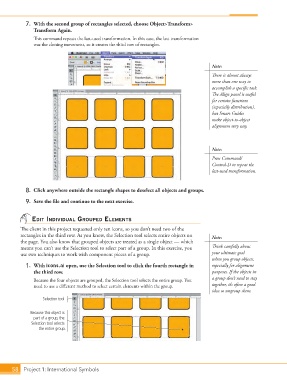
7.  With the second group of rectangles selected, choose Object>Transform>
                    Transform Again.
                    This command repeats the last-used transformation. In this case, the last transformation
                    was the cloning movement, so it creates the third row of rectangles.


                                                                                             Note:
                                                                                             There is almost always
                                                                                             more than one way to
                                                                                             accomplish a specific task.
                                                                                             The Align panel is useful
                                                                                             for certain functions
                                                                                             (especially distribution),
                                                                                             but Smart Guides
                                                                                             make object-to-object
                                                                                             alignment very easy.


                                                                                             Note:
                                                                                             Press Command/
                                                                                             Control-D to repeat the
                                                                                             last-used transformation.


                 8.  Click anywhere outside the rectangle shapes to deselect all objects and groups.

                 9.  Save the file and continue to the next exercise.


                   edit individual grouPed eleMents
               The client in this project requested only ten icons, so you don’t need two of the
               rectangles in the third row. As you know, the Selection tool selects entire objects on    Note:
               the page. You also know that grouped objects are treated as a single object — which
               means you can’t use the Selection tool to select part of a group. In this exercise, you    Think carefully about
               use two techniques to work with component pieces of a group.                  your ultimate goal
                                                                                             when you group objects,
                 1.  With icons.ai open, use the Selection tool to click the fourth rectangle in   especially for alignment
                    the third row.                                                           purposes. If the objects in
                    Because the four objects are grouped, the Selection tool selects the entire group. You   a group don’t need to stay
                    need to use a different method to select certain elements within the group.  together, it’s often a good
                                                                                             idea to ungroup them.
                        Selection tool


                   Because this object is
                    part of a group, the
                   Selection tool selects
                      the entire group.


           58 Project 1: International Symbols

